Thank you.
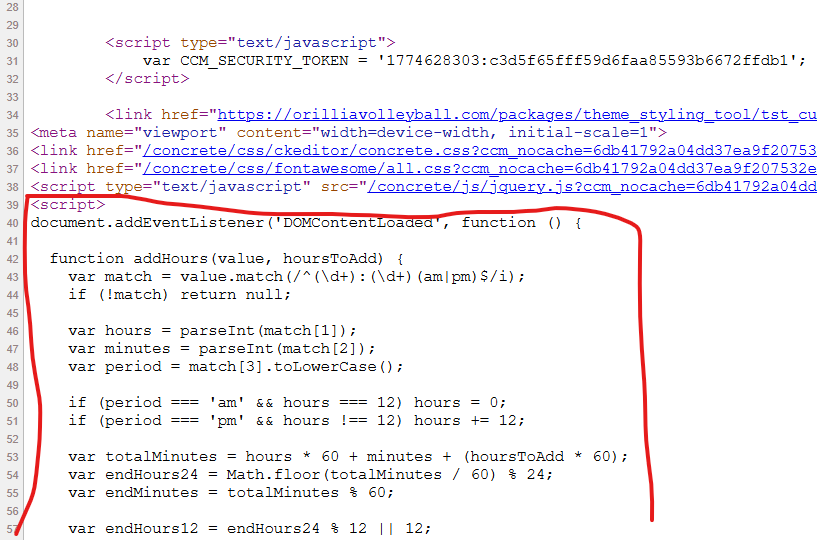
I viewed the source code on the regular calendar page. (Lines 38 to 40)
<script type="text/javascript">
        var CCM_SECURITY_TOKEN = '1774625498:ec8887a53e3fe3dacbe5461fa6826225';
    </script>
Thank you for your cooperation.
Thank you.
I viewed the source code on the regular calendar page. (Lines 38 to 40)
<script type="text/javascript">
var CCM_SECURITY_TOKEN = '1774625498:ec8887a53e3fe3dacbe5461fa6826225';
</script>
Thank you for your cooperation.
I’m very sorry.
I will upload the image again.
Does it vary depending on the theme?
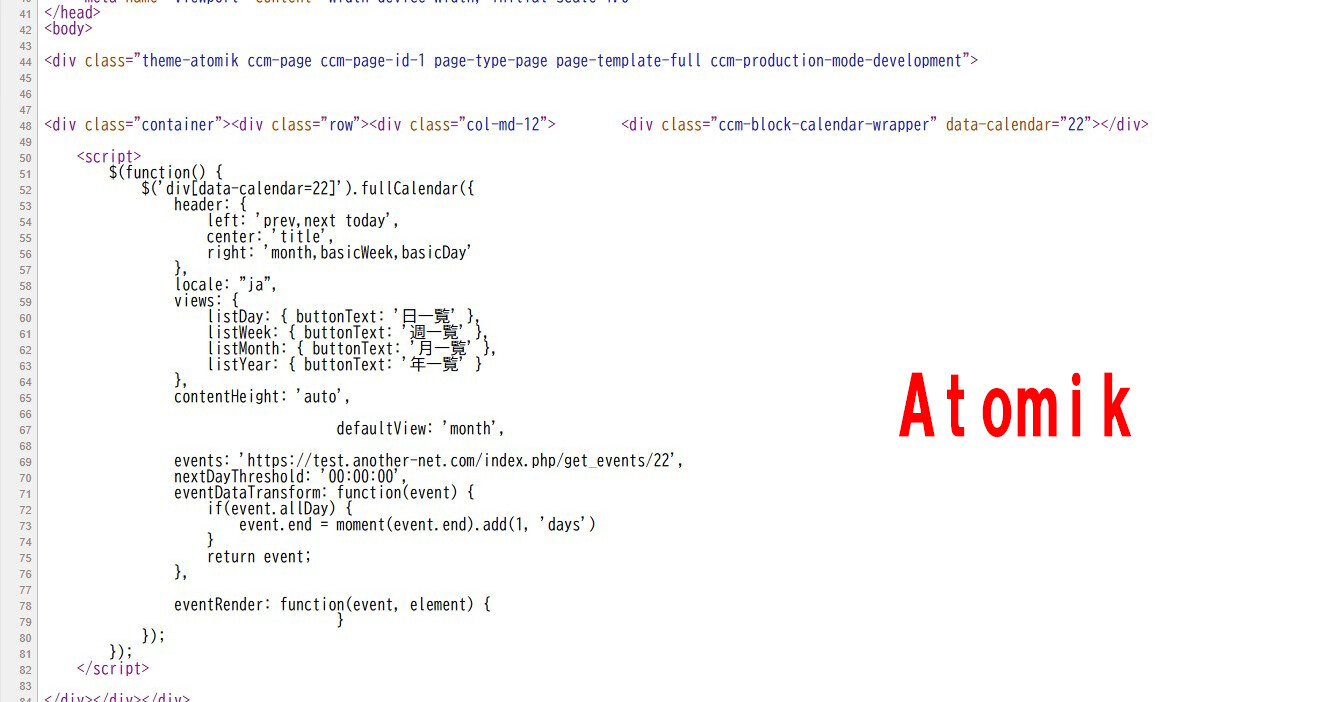
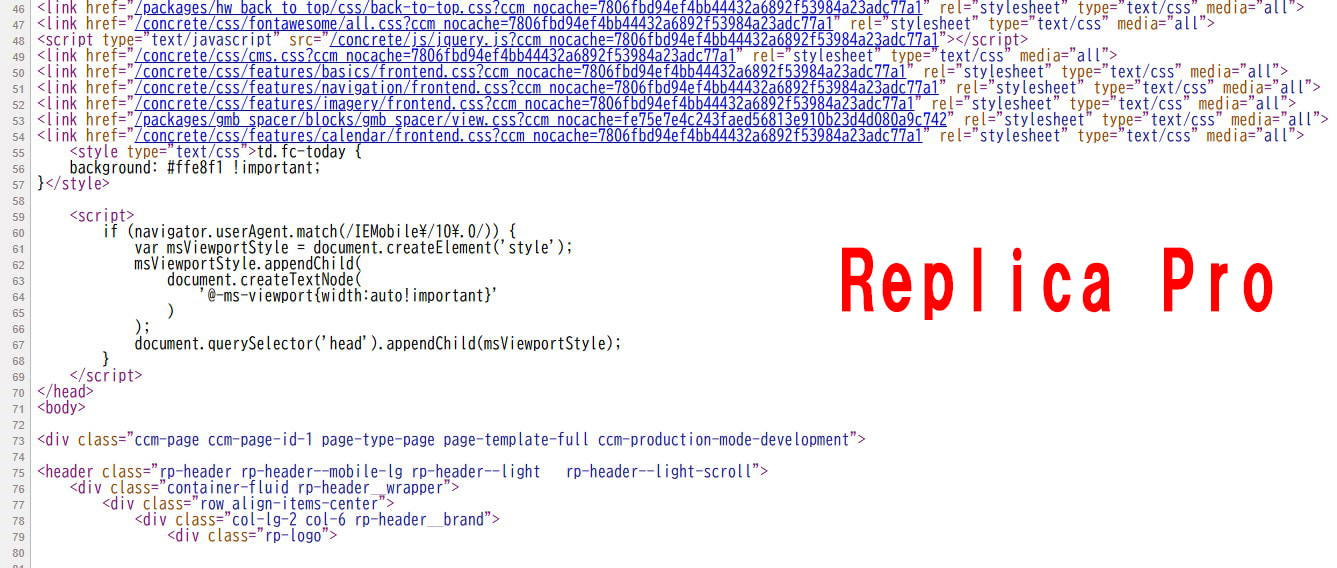
I’m trying it with Replica Pro and Atomik.
The theme I plan to use is Replica Pro.
Thank you for your confirmation.
Is it okay to use the source code for a regular calendar page instead of the admin panel?
I’m not sure you’re doing this in the correct spot because your screenshots don’t line up with what I’m seeing in my system. Yes, the theme will change some things but the fundamental placement of the ‘Header Extra Content’ should be the same. If properly added, it should appear as the last item before the closing < /HEAD > tag. When I went back and looked at your original screenshots, I see ‘Topics’ in the left nav but no other Attributes like ‘Exclude from nav’ so I’m wondering if you’re adding the JS script to the correct spot on the correct page. Here’s a screen recording of the steps I take to get this working:
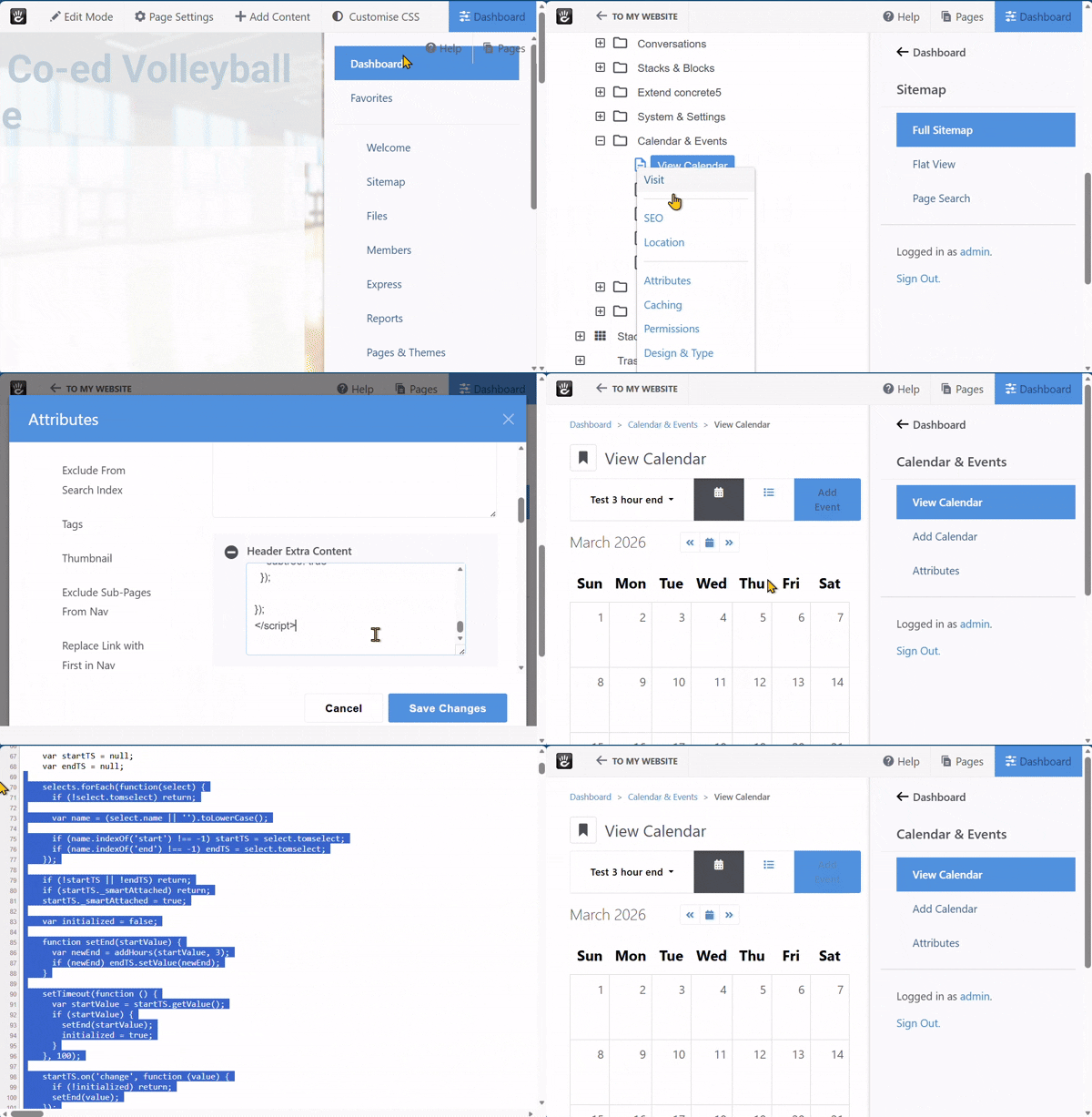
@dsds try this script instead…
<script>
document.addEventListener('DOMContentLoaded', function () {

  // Detects whether a time string is 12h or 24h format
  function detectFormat(value) {
    if (/am|pm/i.test(value)) return '12h';
    if (/^\d{1,2}:\d{2}$/.test(value)) return '24h';
    return null;
  }

  // Parse 12h time → minutes
  function parse12h(value) {
    var match = value.match(/^(\d{1,2}):(\d{2})(am|pm)$/i);
    if (!match) return null;

    var hours = parseInt(match[1], 10);
    var minutes = parseInt(match[2], 10);
    var period = match[3].toLowerCase();

    if (period === 'am' && hours === 12) hours = 0;
    if (period === 'pm' && hours !== 12) hours += 12;

    return hours * 60 + minutes;
  }

  // Parse 24h time → minutes
  function parse24h(value) {
    var match = value.match(/^(\d{1,2}):(\d{2})$/);
    if (!match) return null;

    var hours = parseInt(match[1], 10);
    var minutes = parseInt(match[2], 10);

    return hours * 60 + minutes;
  }

  // Convert minutes → 12h time
  function to12h(totalMinutes) {
    var hours24 = Math.floor(totalMinutes / 60) % 24;
    var minutes = totalMinutes % 60;

    var period = hours24 < 12 ? 'am' : 'pm';
    var hours12 = hours24 % 12 || 12;

    return hours12 + ':' + String(minutes).padStart(2, '0') + period;
  }

  // Convert minutes → 24h time
  function to24h(totalMinutes) {
    var hours = Math.floor(totalMinutes / 60) % 24;
    var minutes = totalMinutes % 60;

    return String(hours).padStart(2, '0') + ':' + String(minutes).padStart(2, '0');
  }

  // Smart add-hours that preserves original format
  function addHoursSmart(value, hoursToAdd) {
    var format = detectFormat(value);
    if (!format) return null;

    var minutes = format === '12h' ? parse12h(value) : parse24h(value);
    if (minutes === null) return null;

    minutes += hoursToAdd * 60;

    return format === '12h' ? to12h(minutes) : to24h(minutes);
  }

  // Snap to nearest valid option in the END dropdown
  function snapToClosestOption(ts, targetValue) {
    var options = Object.keys(ts.options);
    if (!options.length) return targetValue;

    // If exact match exists, use it
    if (ts.options[targetValue]) return targetValue;

    // Convert all options + target to minutes for comparison
    function toMinutes(v) {
      return detectFormat(v) === '12h' ? parse12h(v) : parse24h(v);
    }

    var targetMin = toMinutes(targetValue);
    var closest = options[0];
    var closestDiff = Math.abs(toMinutes(closest) - targetMin);

    options.forEach(function(opt) {
      var diff = Math.abs(toMinutes(opt) - targetMin);
      if (diff < closestDiff) {
        closest = opt;
        closestDiff = diff;
      }
    });

    return closest;
  }

  function attachTimeLogic() {

    var selects = document.querySelectorAll('select');

    var startTS = null;
    var endTS = null;

    selects.forEach(function(select) {
      if (!select.tomselect) return;

      var name = (select.name || '').toLowerCase();

      if (name.includes('start')) startTS = select.tomselect;
      if (name.includes('end')) endTS = select.tomselect;
    });

    if (!startTS || !endTS) return;
    if (startTS._smartAttached) return;
    startTS._smartAttached = true;

    var initialized = false;

    function setEnd(startValue) {
      var rawEnd = addHoursSmart(startValue, 3);
      if (!rawEnd) return;

      var snapped = snapToClosestOption(endTS, rawEnd);
      endTS.setValue(snapped);
    }

    // Initial auto-fill
    setTimeout(function () {
      var startValue = startTS.getValue();
      if (startValue) {
        setEnd(startValue);
        initialized = true;
      }
    }, 100);

    // Update on change
    startTS.on('change', function (value) {
      if (!initialized) return;
      setEnd(value);
    });

    // Keep TomSelect behaviour consistent
    if (endTS.control) {
      endTS.control.addEventListener('mousedown', function () {
        var value = endTS.getValue();
        if (!value) return;

        var option = endTS.getOption(value);
        if (option) {
          endTS.setActiveOption(option);
        }
      });
    }

  }

  var observer = new MutationObserver(function () {
    attachTimeLogic();
  });

  observer.observe(document.documentElement, {
    childList: true,
    subtree: true
  });

});
</script>
This one worked for me in a 24 hour UK timezone.
That one works for me too in Canada.
Yes, this script auto detects the time format for 12 hour or 24 hour and runs the appropriate function accordingley.
@dsds Here are some Step-by-Step instructions.
Thank you for the video.
I believe the setup method is the same and correct.
The settings worked correctly after I followed the instructions!
It achieved the functionality I wanted.
I am very grateful.
I sincerely appreciate you modifying the complex code to make it work properly.
Thank you to everyone who helped.
Thank you so much!!
Aren’t those the very same instructions I posted with my original solution?
I apologize if I caused any misunderstanding.
The issue has truly been resolved, so I can’t really explain it.
I’m replying via translation, so I apologize if the nuances aren’t conveyed.
I appreciate the helpful information and effort you put in.
Glad we got it solved.