What is the easiest way to handle date/time-sensitive content … short of using Javascript or other coding? It might seem that this functionality was enough required that the base product should handle it. For example, is it possible to:
Have different versions of the same page display based on date/time?
Display/hide blocks on one page based on date/time? For example, have Block A with “normal” content and Block B with time-specific content additions, where B displays until a specific date when Block A replaces it?
Something else.
It seems like one might use calendaring features in Concrete, but we don’t really want a calendar.
I am not a novice regarding websites, HTML, CSS, and any number of other GUI-based web development tools, but I am fairly new to Concrete and find it a bit obtuse. I have become manager of a website for our chorus and would like to have blocks/pages related to upcoming concerts disappear or change after concert date.
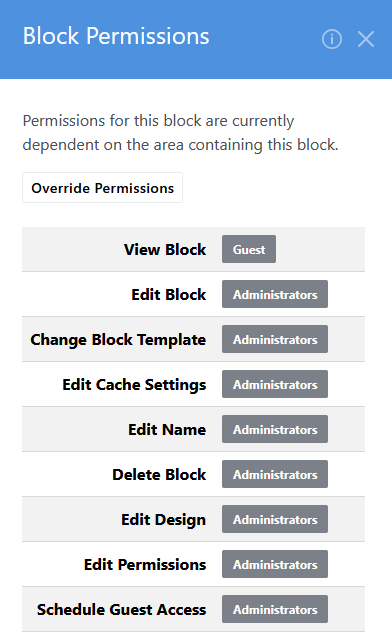
I’m not sure if you’ve found your answer but there are a few ways I do this. I mainly schedule certain blocks to appear or disappear by using the ‘Schedule guest access’ option on the specific block. Edit Page → Edit Block ->Scheduled guest access. This usually entails having a duplicate block in the same area that contains today’s content which is set to disappear at the same time as it’s future version appears.
The other way is to use the Page settings → Permission → View and click the clock icon next to ‘Guest’ to make the entire page appear at a certain time. This is fine for having a whole new page suddenly appear in the sitemap but that doesn’t happen very often in my experience but YMMV. This method usually means you have to create a whole new page that shows in the future. I don’t like this because then I have random old pages in the sitemap I have to remember to clean up and getting the SEO right is messy (at least it is for me)
Perhaps best for your situation is to use the little clock icon (not intuitive IMO) when Publishing a page through Edit Mode → make changes → Publish. At the bottom of the resulting dialog where you set the date/time for the future content to show, there’s a toggle to tell the system to show the current page contents until the scheduled date/time for the new page content to show.
It would be really nice if the core contained a basic ‘Schedule’ option in Page Settings rather than burying this in several places but it is what it is.
I did figure out suggestion #1 but haven’t yet implemented it because I encountered unexpected behavior.
If A is the “now” block and B is the “display later block”, when I save the page and come back later to edit it, I see only block B. I would expect that, having Administrator privilege, I should see both blocks in the editor at all times
Well now, I haven’t tried this in recent version of concrete. I’m messing around with it now and it appears that scheduling Blocks seems broken to me. My two blocks disappeared completely. Let me check it out further.
NOTE: Upon further review. It appears to working as expected. Lots of moving parts. I must have screwed something up during my first attempt.
For some reason, I’m still unable to see both blocks in the editor. The changes take effect for the displayed page, but I don’t see the before and after blocks in the editor. Perhaps I’m specifying something incorrectly?
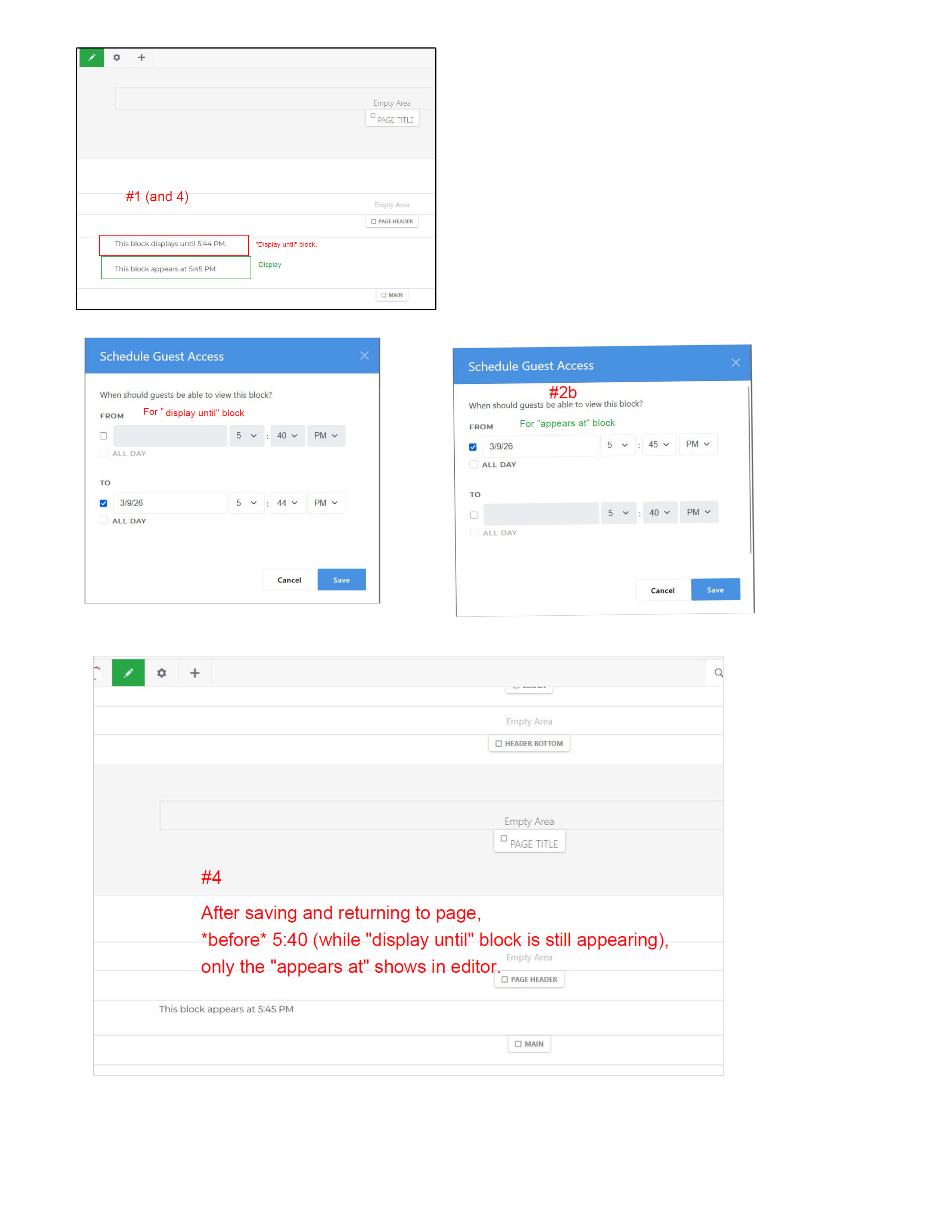
Here’s how I set it up… (4-page)
Set up two blocks, one to display until a certain time, the other to display starting at a certain time. I even put a gap of one minute between the hide and display.
Here’s what the scheduling popups look like:
(b) Schedule for the the “display until” block
(a) Schedule for the “appears at” block
When I save the page, I see both blocks. (Same as image #1.)
However, I save and then reopen in the editor, I see only the future block.
Same result, even if I clear the cache. Could this be a bug? Do I need to specify both start and stop date/times for this?
Very frustrating!
This seems like it should be so easy. I used to do it with little snippets of JavaScript, but would like to keep the website for our community chorus (www.commonwealthchorale.com) “easier” for non-heavy-duty techies or webbies to help maintain.
I’m desperately trying to replicate this but I can’t. Some long-shot ideas that I might try IF I could get this to show up.
You’re using a ‘fresh’ block and not one from the Clipboard that might have residual settings attached to it.
If you’re just setting the date/time via ‘Schedule Guest Access’ then choose ‘Permissions’ instead and I would toggle the Edit Block permission for the Admin off and on again to make sure the Admin has editing permission.
Activate the Dev Console and look at the Console tab as you put the page in edit mode to see if anything complains.
I’d create a new fresh blank page and set these blocks up. Maybe there’s something conflicting with it on the page you’ve been working on.
If you are talking about on the browser, I activated the console (on Firefox) and saw issues, but believe they’re unrelated. If you have any ideas. If you’re talking about a console on Concrete CMS, I don’t believe I have sufficient privilege to do that. We’re on a hosted environment, so I can’t get any more privilege than Administrator.
If you’re talking about an empty page, I’m not sure how to do this. There are several new page options, but all of them have headers, footers, etc., of the individual who set this up. There is no blank or empty page.
Thanks so much for your help.
I think this is going to require someone to sit with me and look. The “consultant” we have who set up and holds the Great-Oz privileges is hard to contact. (Actually, not hard to contact, hard to get a response from.)
I worked for successfully 20+ years as a database consultant for and with Oracle and did a good amount of work afterward using various CMS, but Concrete seems a little obtuse to me. This seems like a moment I do a screen share with my client. After so many years of consulting, I feel like there’s probably something really basic that’s not right that I don’t have enough experience to catch.
I had hoped to use scheduled blocks for making concert tickets and other time-sensitive data appropriately available, but now will have to resort to making manual changes after the concert or other event. O, Fortuna!
Thanks very much for the time you’ve spent. It is much appreciated.
Silly question… until we figure this out, why not just put one block up that has the ticket info and make it disappear after the concert? Stale-dated info about a past concert isn’t time sensitive but ‘Purchase Tickets’ needs to disappear.
By a ‘blank page’, I just meant one without any blocks already added to it. I was concerned that you kept adding these blocks to the same page and that page had some other block that was conflicting with your endeavors.
You say you “saw issues, but believe they’re unrelated.”. Can you copy’n paste those errors. Have the console open as you re-open the page for editing and see what pops up, if any.
Can you log in (or are you logging in) as the Great-Oz or did s/he set this up with you as an Administrator (they aren’t the same). If you can log in as s/he then does this change anything? (I can’t imagine why it would but we’re grasping at straws here).
Do you have FTP access to the server for up/downloading stuff? If so, head to /application/files/cache and delete the entire contents of that folder (or delete the /cache folder completely and concrete will build another blank one). This clears out everything cached from the past. One would think the ‘Clear cache’ command from the Dashboard would do that but not quite.
I’m back and REALLY would like to get the schedule block access functionality to work but I’m still experiencing the same as above. I need to post content for Commonwealth Chorale’s upcoming audition dates (that need to disappear as they pass), 2026-27 season concert info, etc.
Would you be willing to do a screen share with me? I would be happy to pay – within reason – for your time.
 ), so I wish I had better news but it’s still no-go. Specifically, item by item…