How to Change Today's Color on the Calendar

How to Change Today’s Color on the Calendar

Thank you for your continued support.

I was trying to change the today’s color in the calendar block from the current [#FCF8E3] to [#FFF0F5].

I didn’t override the settings, but instead changed the content of “concrete” → “css” → “fullcalendar.css” from [td.fc-today{background:#fcf8e3}.] to [td.fc-today{background:#fff0f5}.] and uploaded it.

I also cleared the cache in Settings and my browser cache, but it didn’t work.

Do I need to change other files as well?

Please advise.

This is my environment.

Concrete Version

Core Version - 9.4.7
Version Installed - 9.4.7
Database Version - 20250827152432

#Hostname
sv10000.xserver.jp

System User

demo

Environment

production

Database Information

Version: 10.5.13-MariaDB-log
SQL Mode:
Character Set: utf8mb4
Collation: utf8mb4_unicode_ci
I wanted to change the CSS using the proper method, such as overriding, but rewriting the code didn’t work, so I ended up going to Theme Design → Customize and adding custom CSS, and was able to change the color by adding the code.

I really wanted to know the proper way.

Thank you.

Concrete uses the Full Calendar Script. Here’s their doc page explaining how to do it:

Thank you. I will take this into consideration.

I’ve looked at it, but there’s something I don’t understand.

I was able to change the start of the monthly calendar that guests can view to Monday, but the calendar that administrators use to add events starts on Sunday, so if I don’t change it to Monday, it won’t match and there’s a risk of events being registered incorrectly.

I’d like the calendar that administrators see when adding events to also start on Monday. Could you please tell me how to set it up?

Thank you in advance.

The calendar in the dashboard, the one used to add events, gets its week’s start day from the dashboard locale, i.e., the specific version of the language. For instance, in the USA, Sunday is the first day, but in the UK, it’s Monday. So if your website’s dashboard locale is set to US English, the first day will be Sunday. If you want it to be in English and want Monday to be the first day, I suggest you switch the locale to GB.

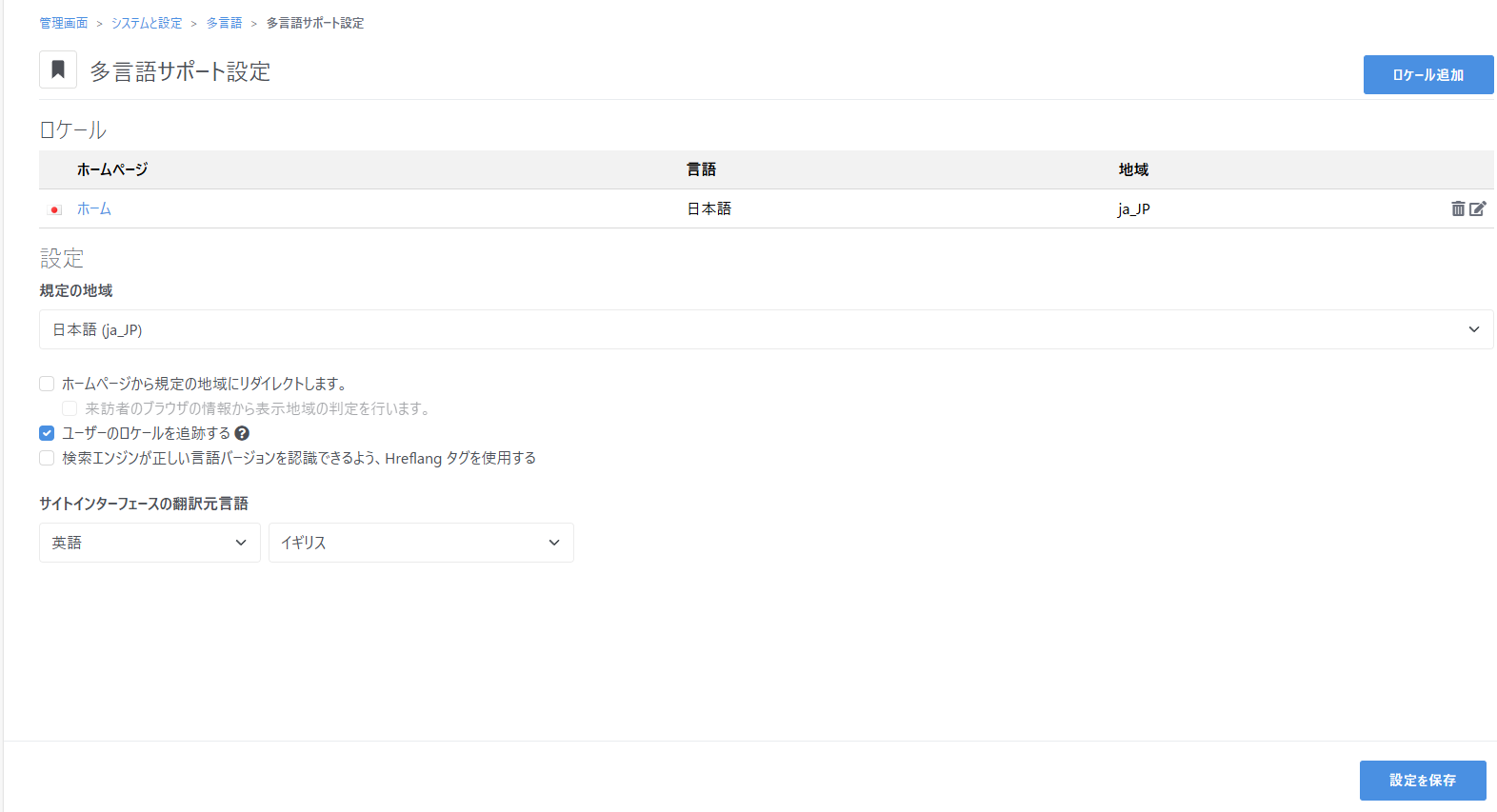
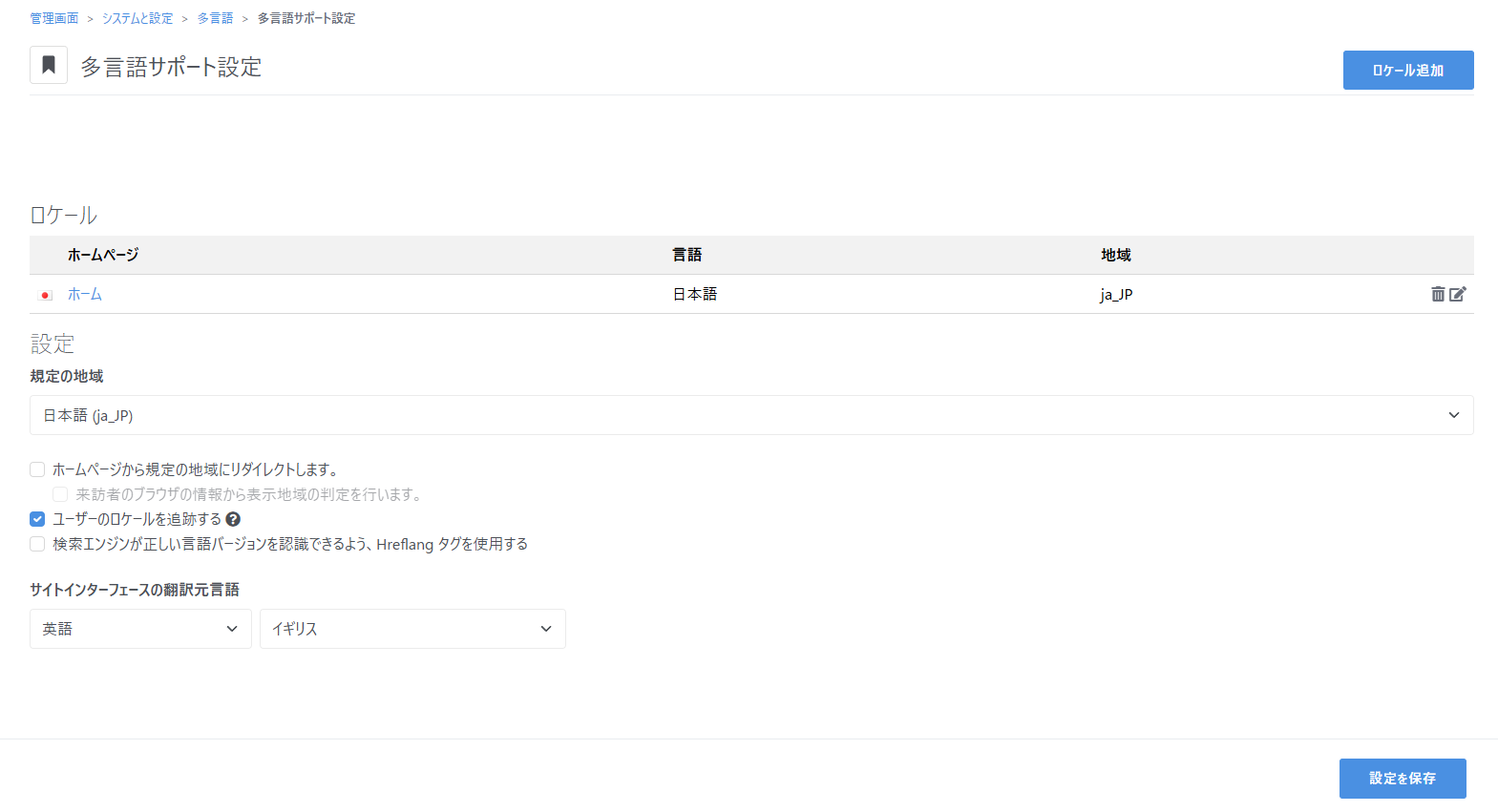
To achieve that, you can navigate to the page /dashboard/system/multilingual/setup of your website. Right where it says “Site interface source locale” and the language selected is English, in the second dropdown, select “United Kingdom” and hopefully your calendar will start from Monday.

Thank you.
As you suggested, I set the source language for the site interface in the multilingual support settings in the dashboard, but the calendar display did not change.
I also cleared my browser and site cache, but there was no change.
By the way, the site is in Japanese.

Is there something I’m doing wrong?

Thank you for your advice.

I double checked and I was wrong. The calendar doesn’t take the information from there.

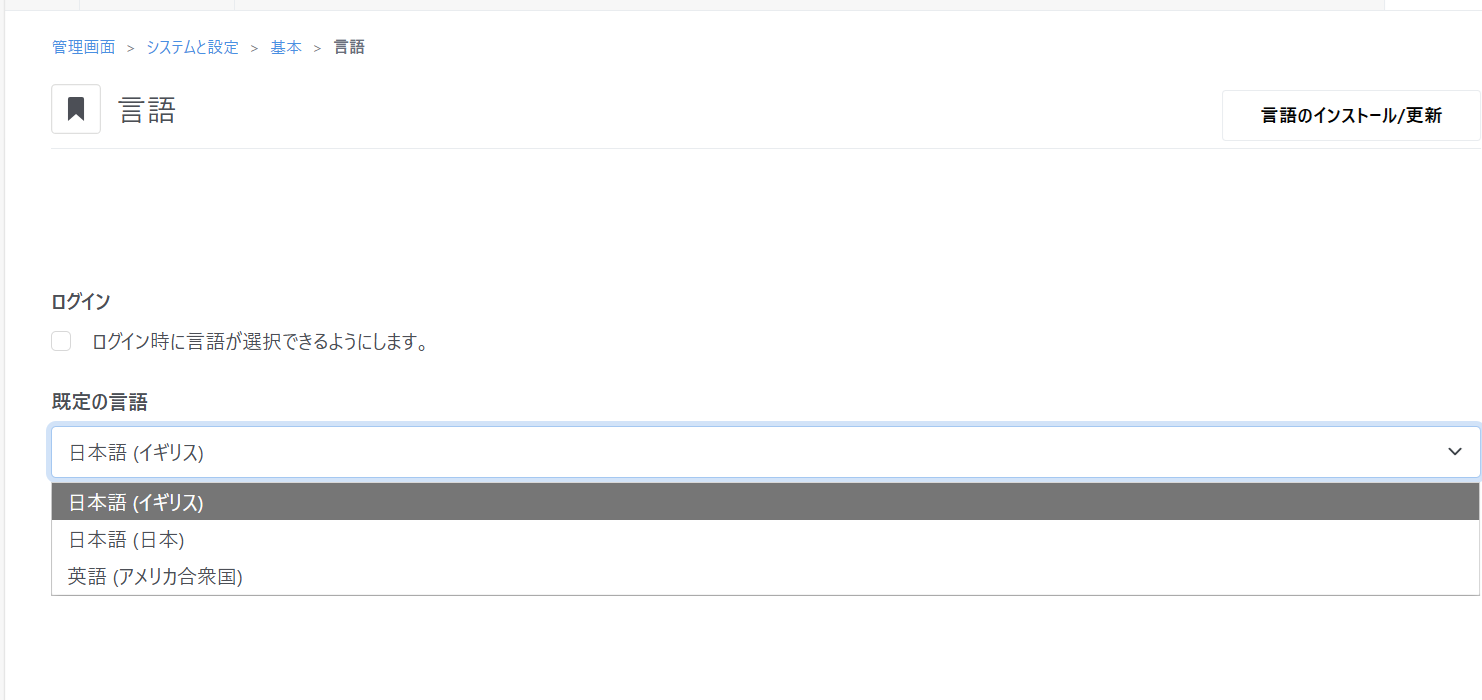
It takes it from the main language page here: /dashboard/system/basics/multilingual. This is where you selected Japanese for the whole dashboard.

So the problem is the locale is set as ja_JP. The calendar uses the second part of that locale JP to determine the first day of the week. But because in Japan it seems the official first day of the week is Sunday, you’re not getting what you want.

So what we need to do is have the locale set as ja_GB. ja will mean the dashboard language will be set to Japanese, and GB will make the calendar use Great Britain’s official first day of the week, Monday.

Now we need a hack for that because there is no official way to achieve it.

Because your dashboard is in Japanese, that means you have installed the Japanese language.

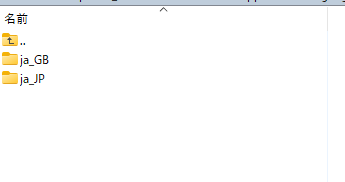
So you have a folder named ja_JP inside the folder application/languages on your server.

What you need to do is create a new folder named ja_GB inside application/languages alongside ja_JP. Then copy everything in ja_JP and paste it to ja_GB.

Now, in your dashboard, go back to the page where you can select the dashboard’s language: /dashboard/system/basics/multilingual.

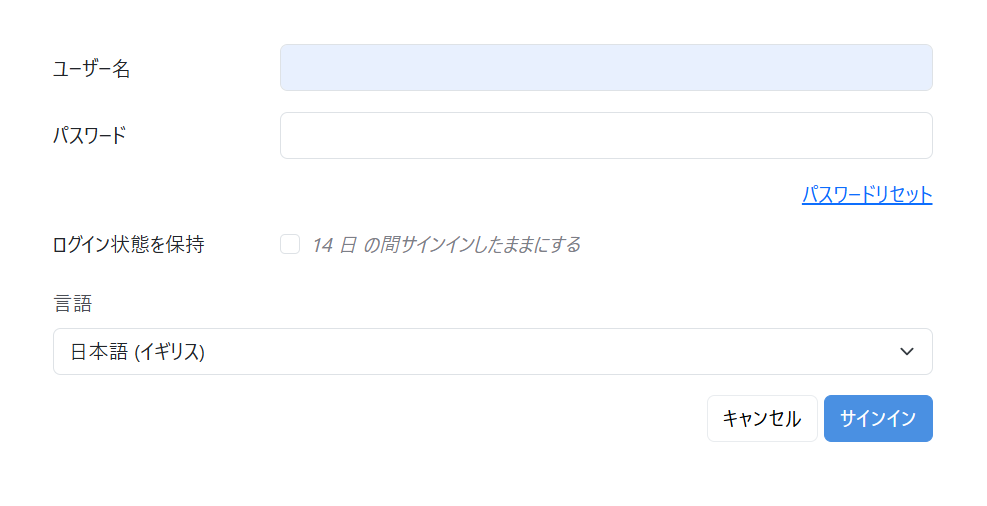
In the list of languages, you will now have a third language, Japanese (United Kingdom).

Select it and save. Your site is still in Japanese, but now your calendar should start on Monday.

Please keep in mind this is a hack, so keep an eye open for any weird behavior you might notice.

Let me know if something is not clear or if you need help with that.

1 Like

Thank you for your reply.
I’m not as knowledgeable as you, so please explain.
Do I need to create a folder in application/languages/ instead of adding the language from the admin screen?
Please explain it so that even a beginner can understand.

So the idea is we need to create a situation that doesn’t actually exist. We need to tell the system we’re using Japanese from the UK…

So step by step:

  1. From the dashboard (your admin screen) download the Japanese language files so your dashboard is in Japanese. I think you already did that.
  2. On your server, check that you now have a folder in application/languages named ja_JP.
  3. Inside application/languages, next to ja_JP, create new folder named ja_GB
  4. Copy everything you’ll find inside ja_JP and put it in ja_GB. So now both folders contain exactly the same things.
  5. Go back to your dashboard to the screenwhere you have selected the Japanese language for your dashboard
  6. In the language list you will now see a second choice for Japanese from the UK.
  7. Select it and save your choice.
  8. Your dashboard is still in Japanese but now your calendars start on Monday.