Problem with Direct Access to PDF Files, etc

Thank you for your continued support.

When you directly access the URL of a PDF file posted on the site, it displays a link.

I thought that directly accessing the file would display the ConcreteCMS login screen.

Setting permissions in the file manager requires setting a password, which is inconvenient.

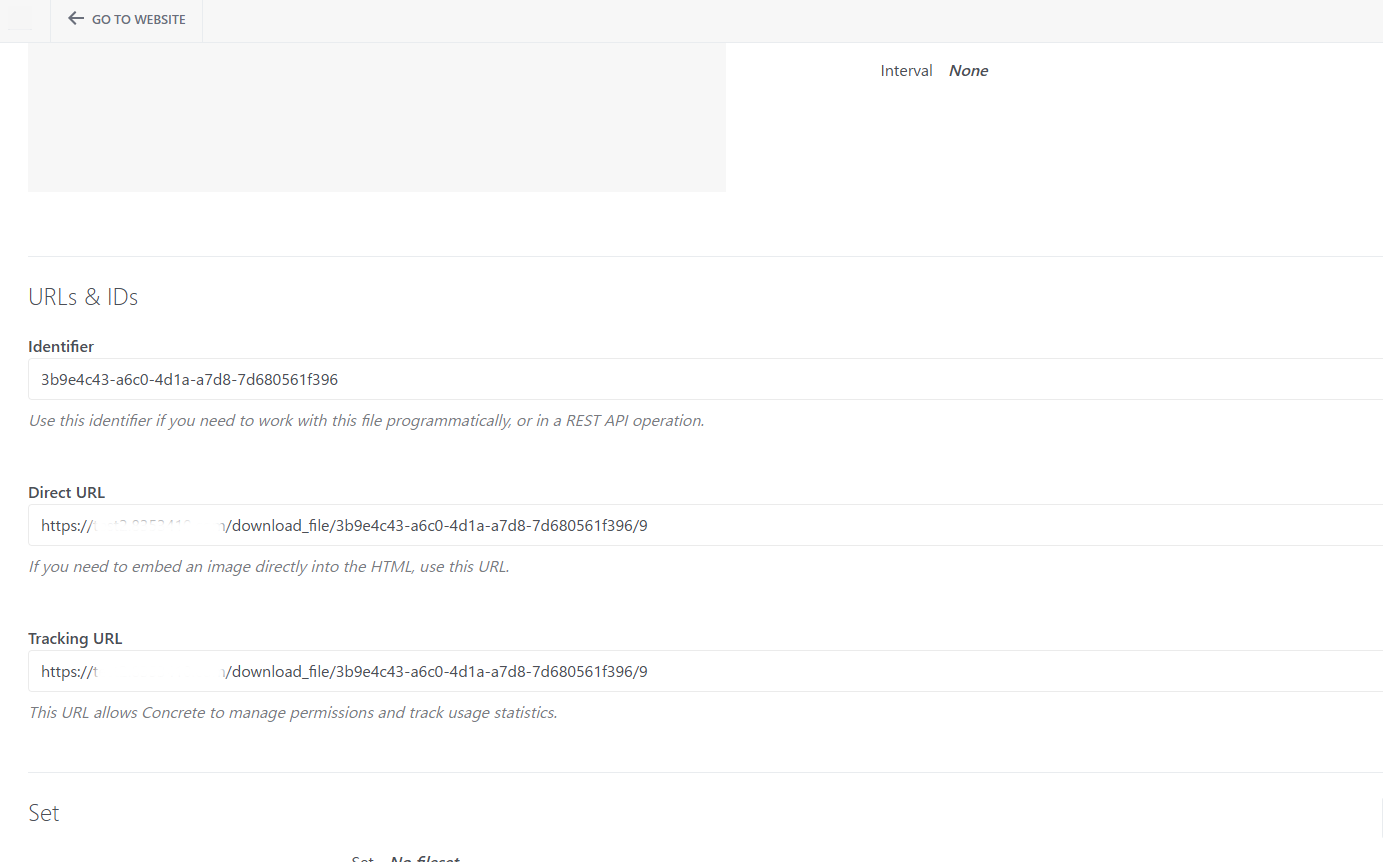
I selected a file from the file manager and inserted the “Tracking URL” into the article block, but clicking it changes it to a URL that can be accessed normally.

Is there a way to use the “Tracking URL” as a link directly?

I found an article that mentioned setting this with advanced mode permissions, but I’m not very knowledgeable about such things, so I can’t do anything complicated.

Thank you for your guidance.

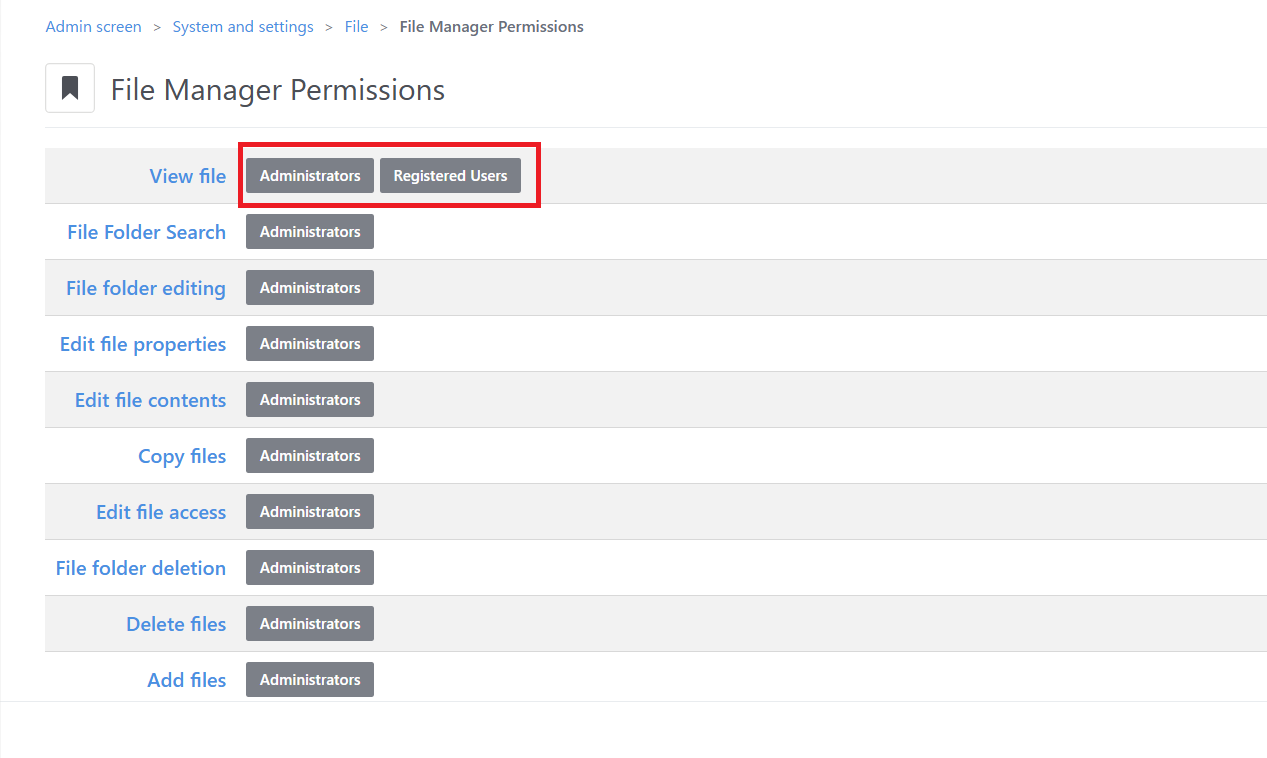
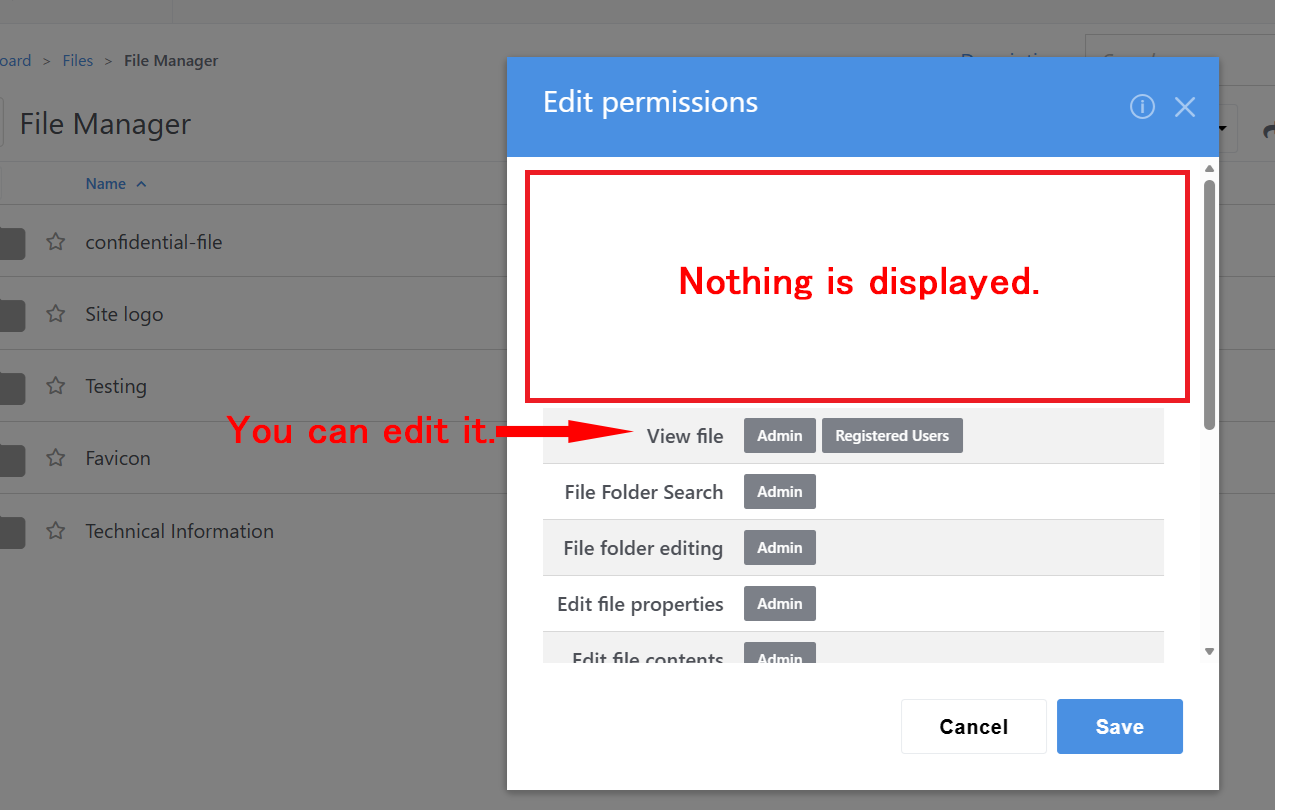
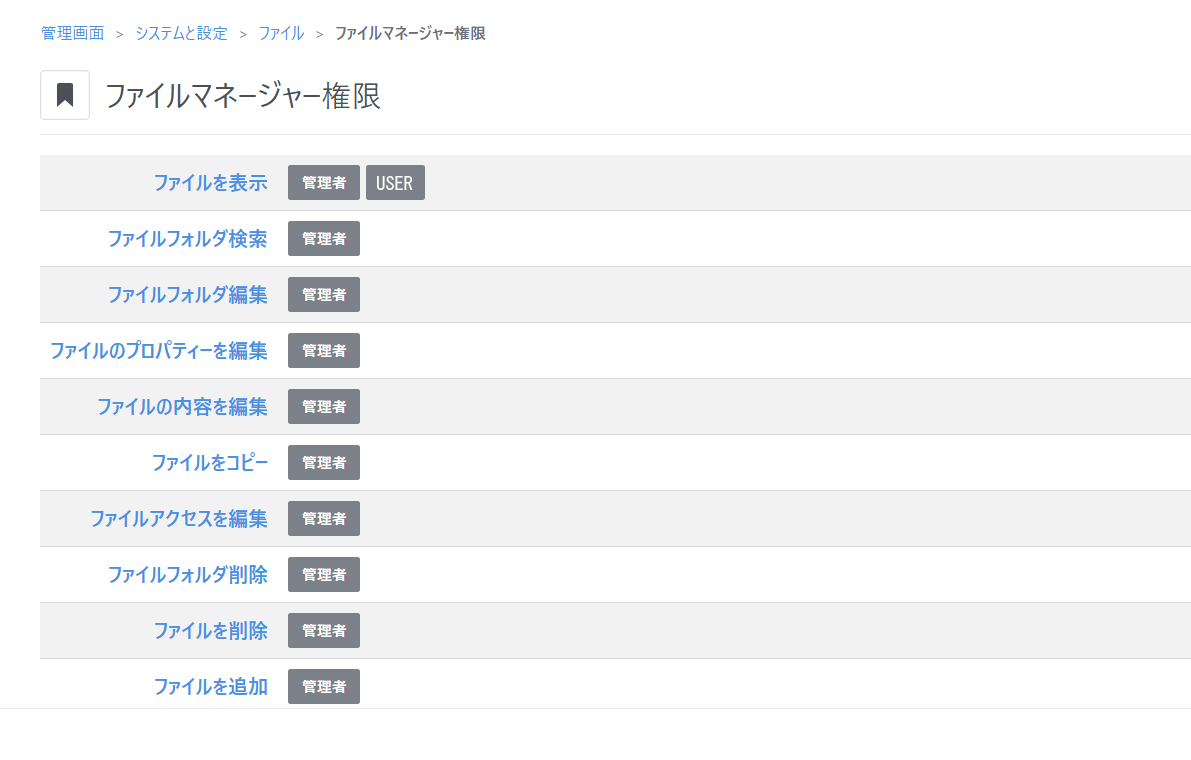
I removed the guest user and added a registered user in the admin panel (System & Settings → Files → File Manager Permissions → View Files), but the files are still directly visible when logged out.

I would appreciate it if there is a simple way to resolve this.

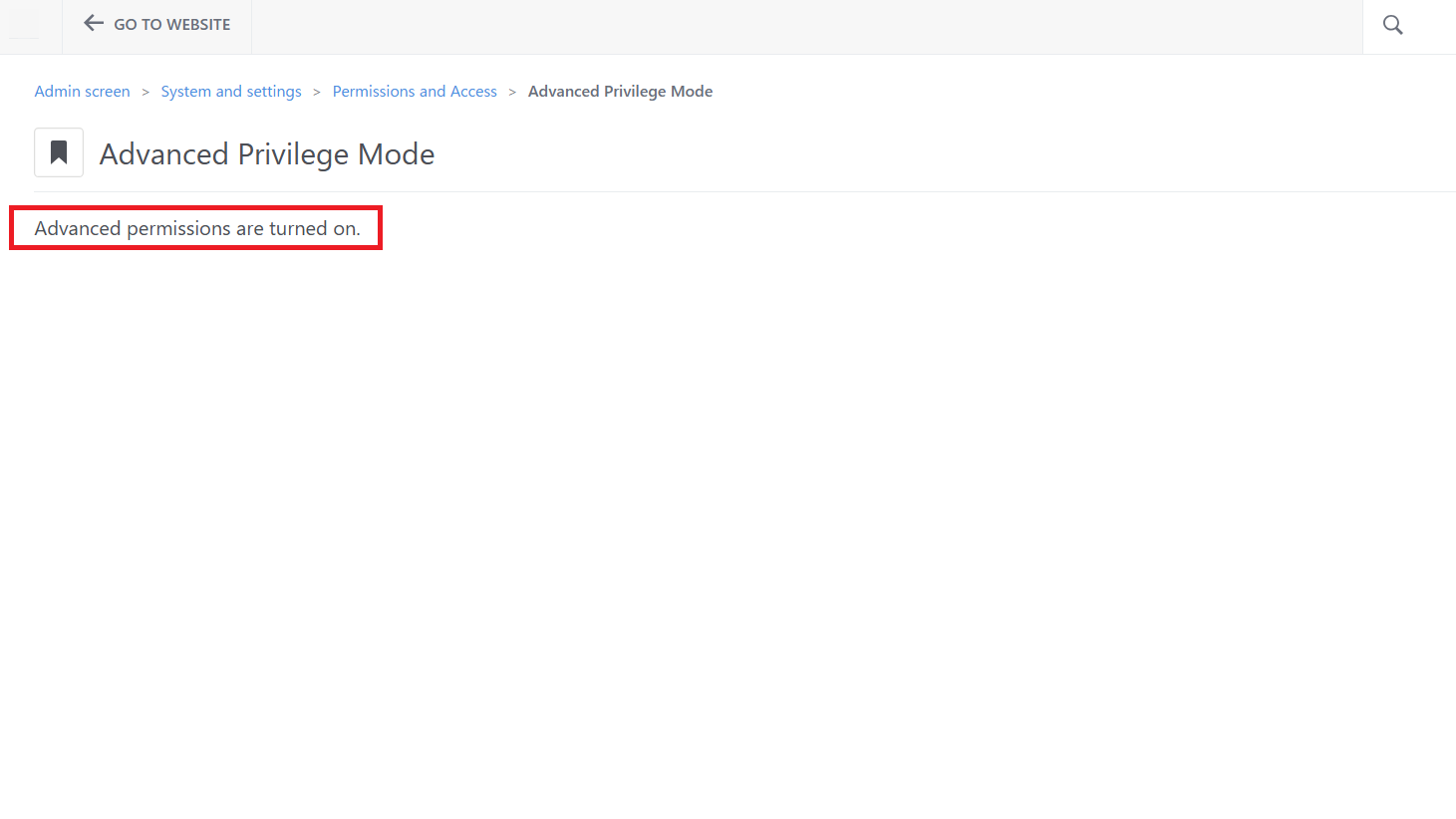
As a last resort, I tried setting the permissions to advanced mode.
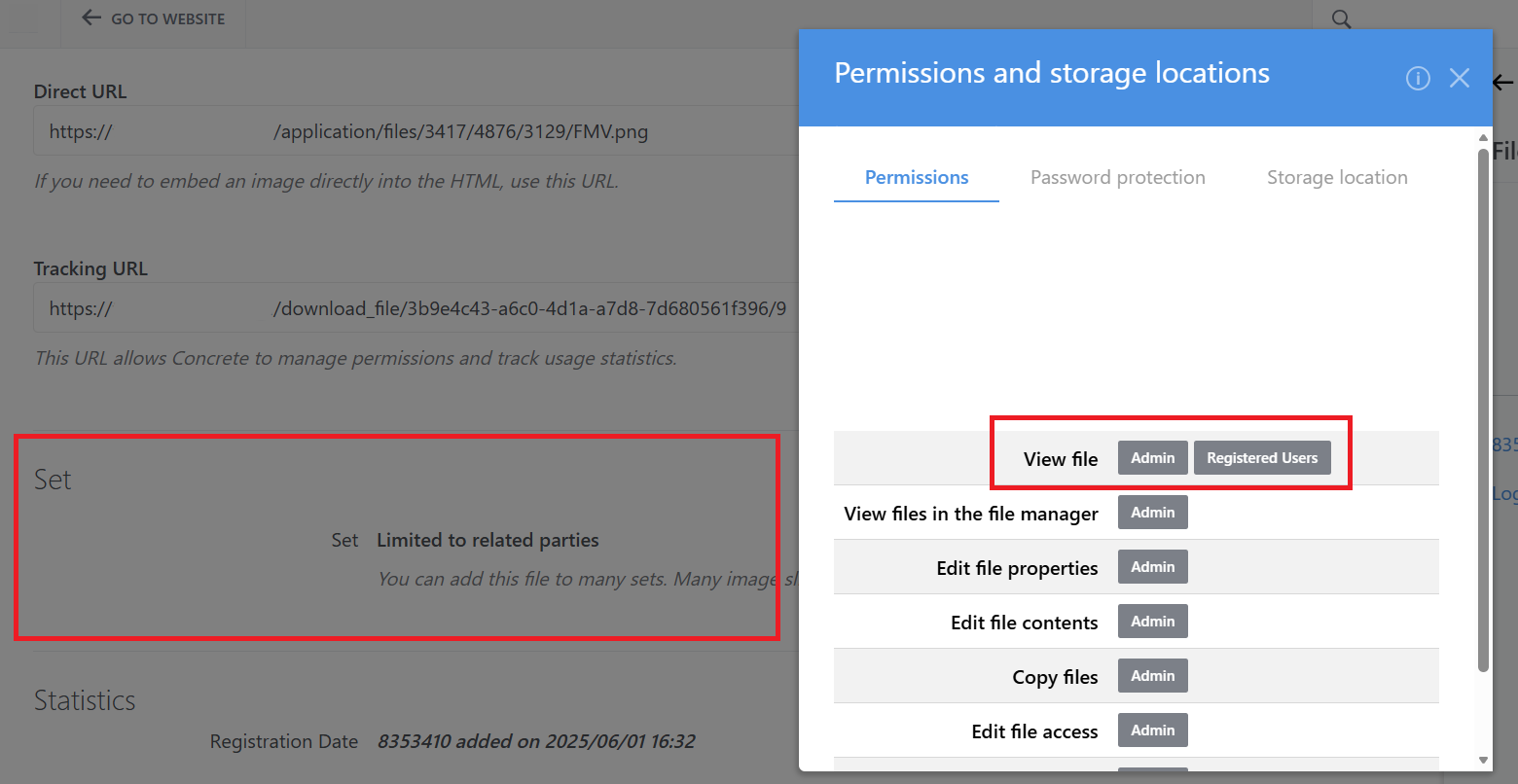
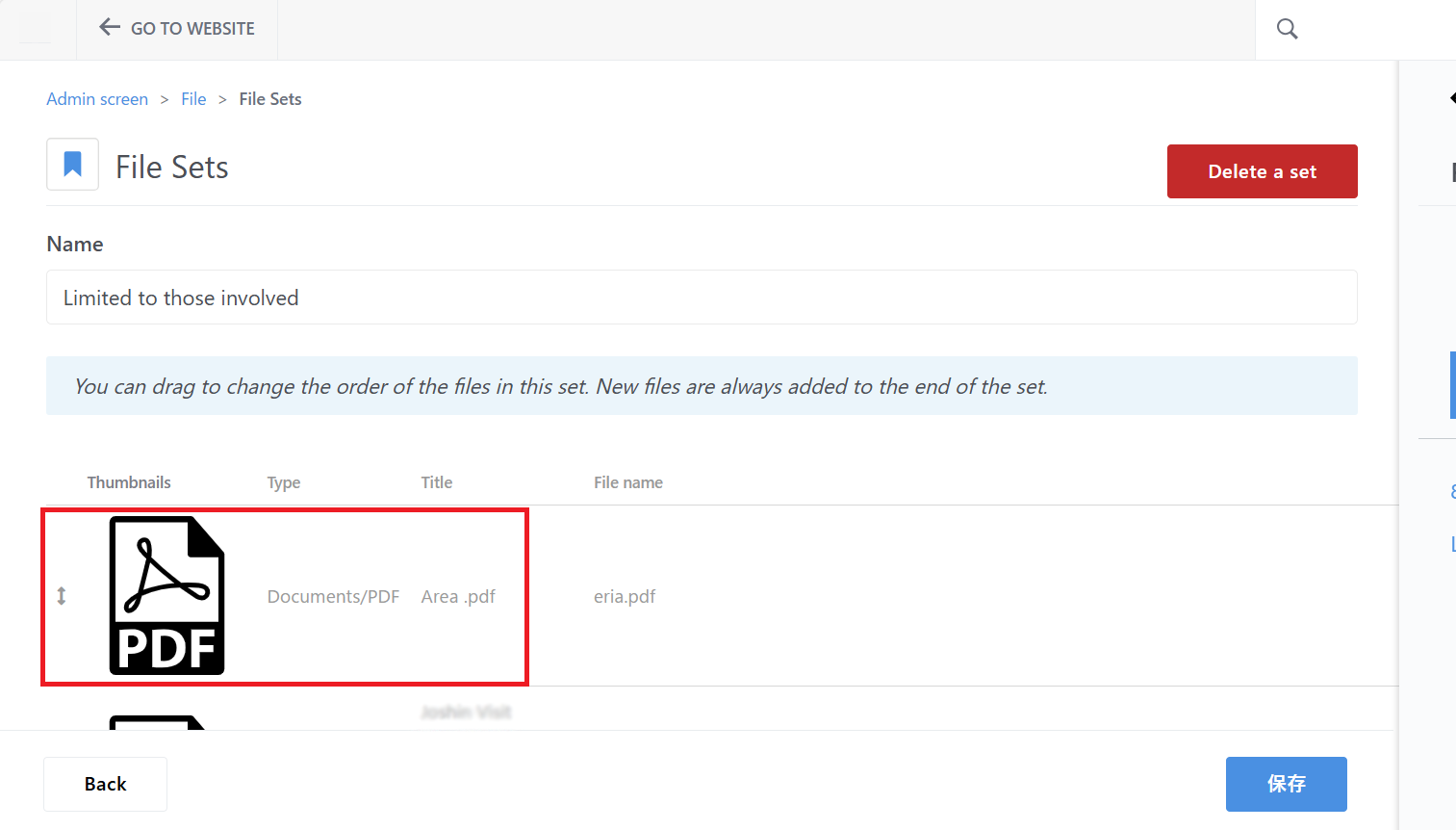
I added a file set and placed the files I didn’t want displayed inside it.
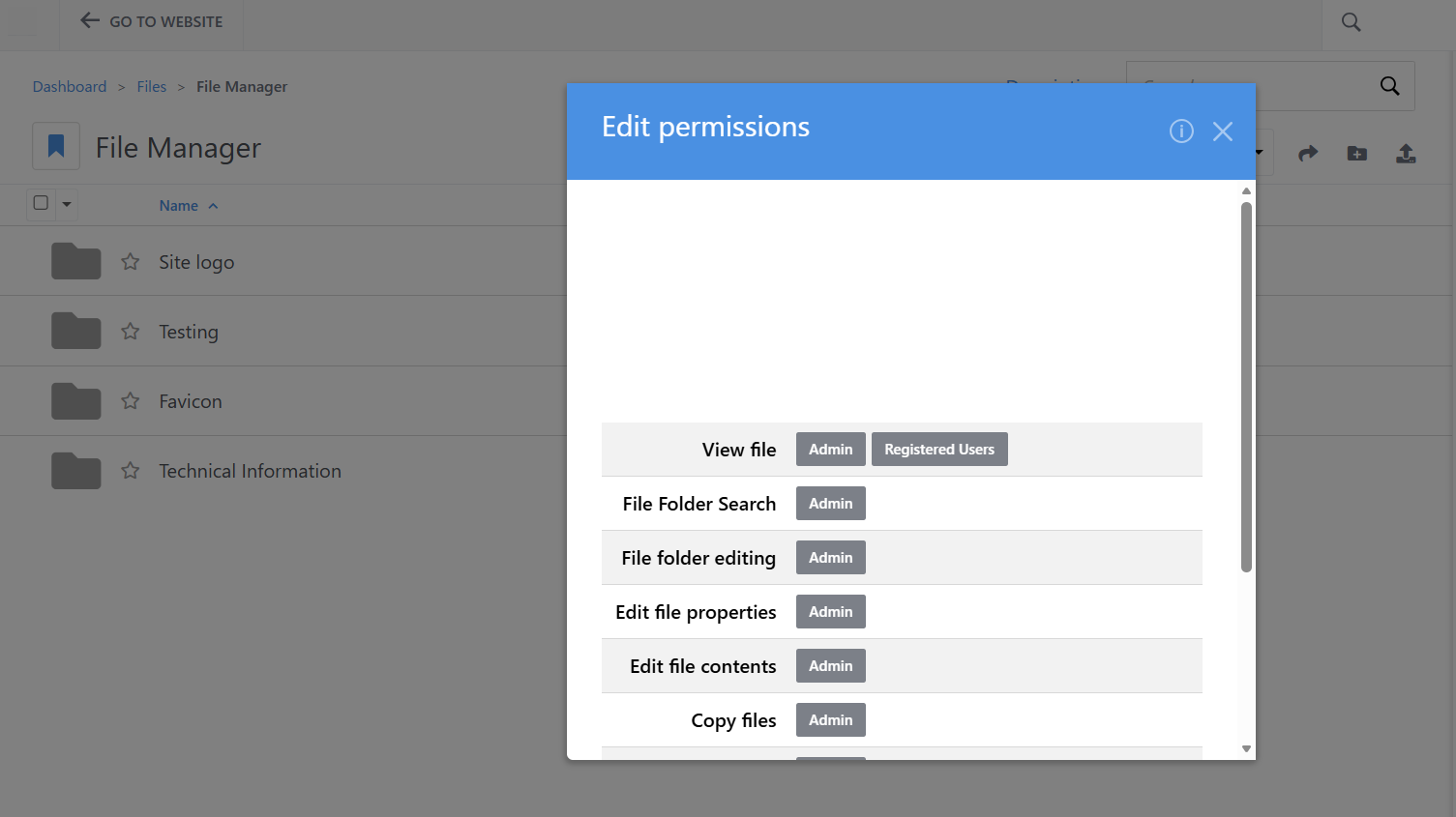
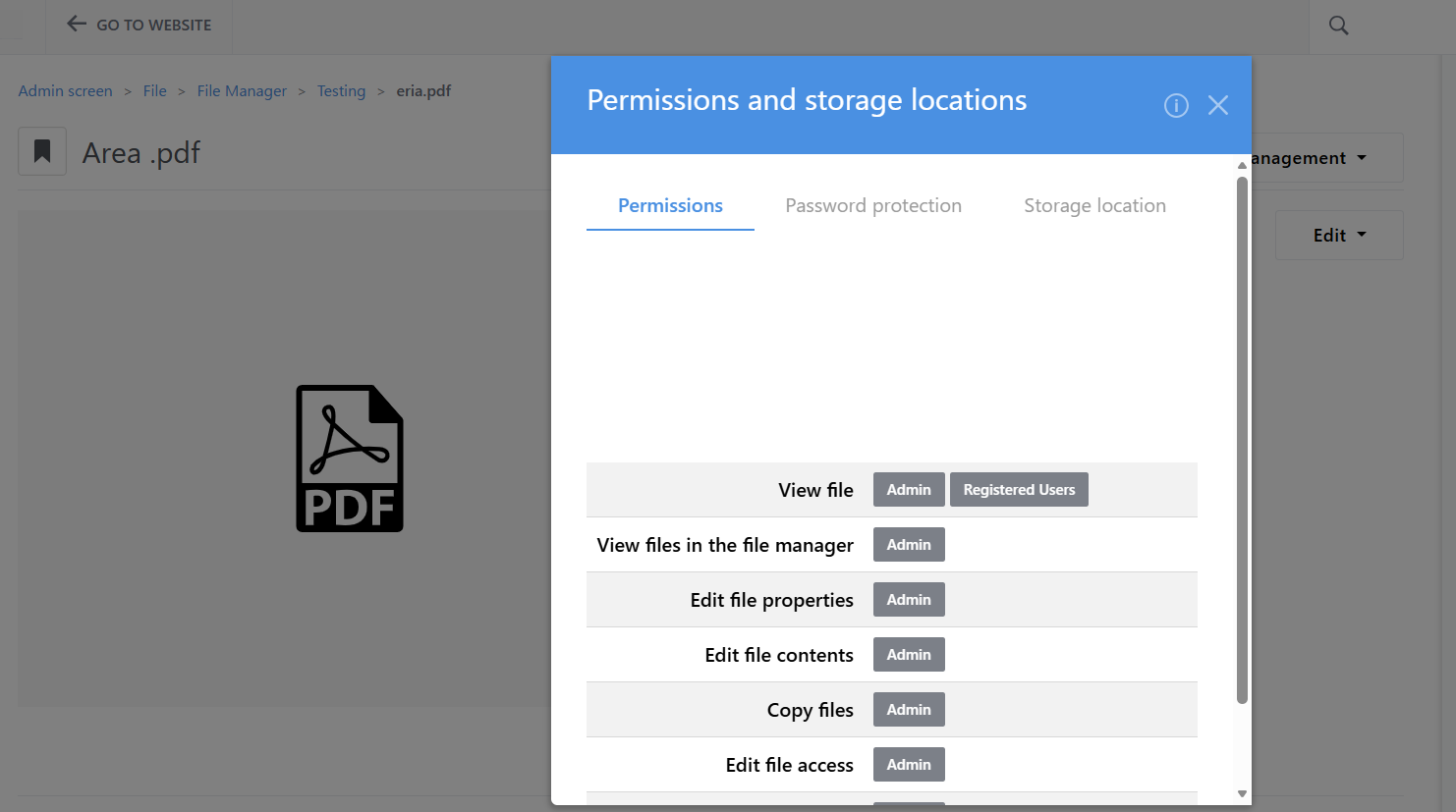
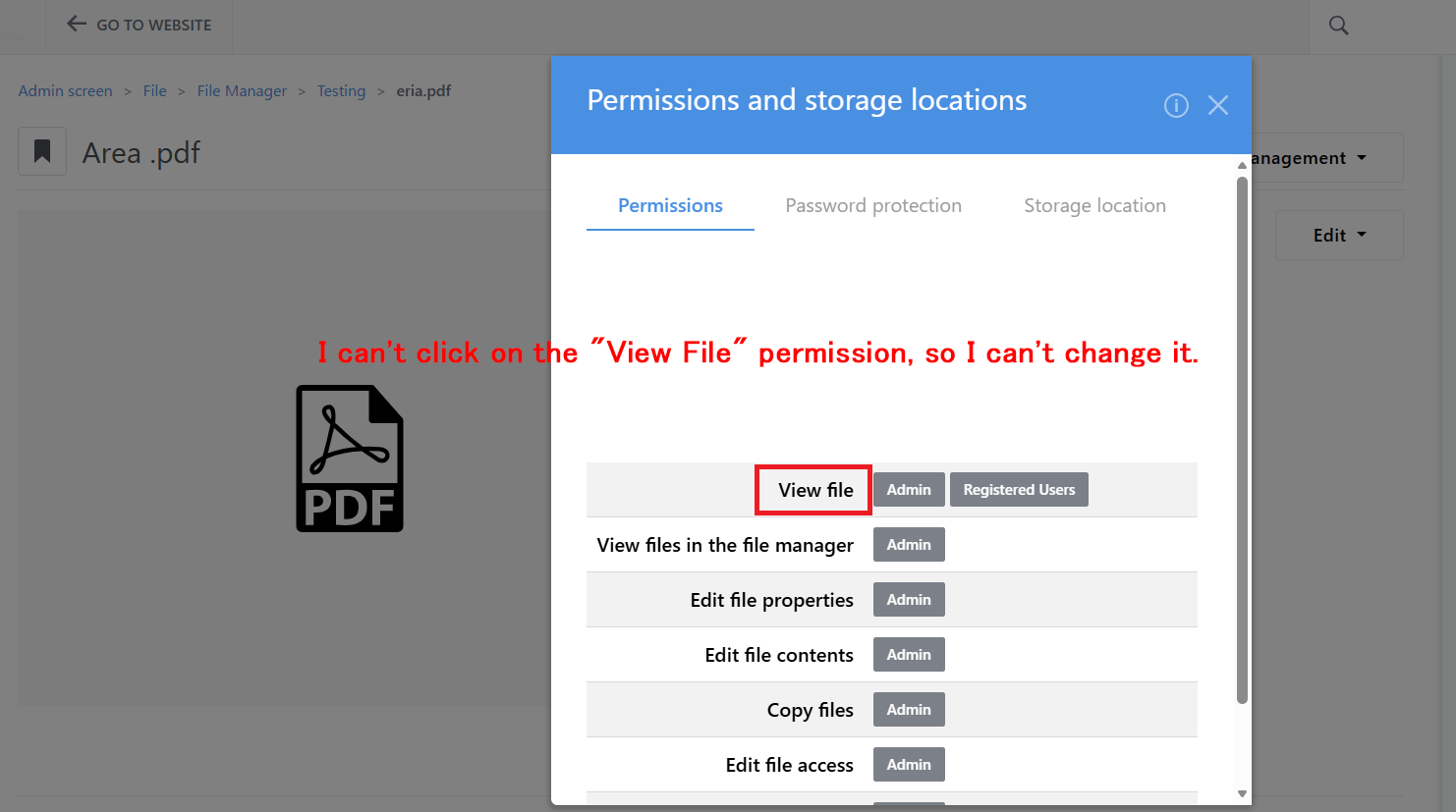
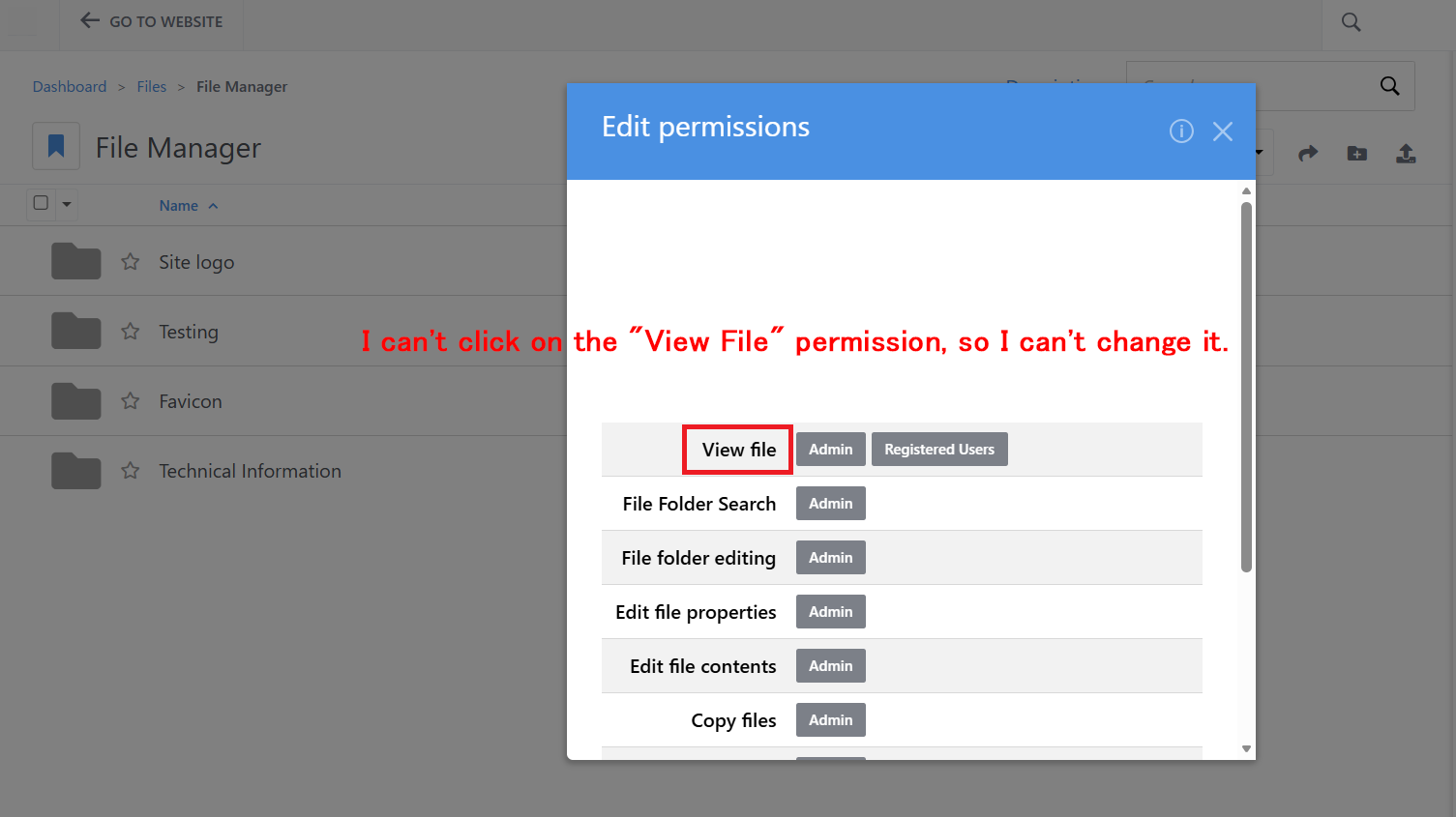
I set the permissions for those files to be restricted to administrators and registered users only, as shown in the image, but it didn’t work.

To prevent direct access from the URL and display the login screen, would it be necessary to move the files to a different folder or something similar?
Thank you for your guidance.

I consulted the AI ​​and received the following advice, which I then tried:

:brick: Procedure (ConcreteCMS 9 compatible)
① Create a file set
Admin Panel → Files
Left Menu → File Sets
“Add File Set”
Example: Create a clear name such as “Restricted Access Only”

② Add files to the file set
Select the target files in the File Manager
“Add to File Set”
Select the created “Restricted Access Only”

③ Set file set permissions
Admin Panel → System & Settings
Permissions & Access → File Set Permissions
Select the target file set (e.g., “Restricted Access Only”)
Switch the permission mode if it’s not set to “Advanced”
Remove “guest” from “View” permissions
Add “Registered Users”

Now,
:locked: Unlogged-in users cannot view files even if they access the file URL directly
:unlocked: Logged-in users can view and download files as usual

I tried accessing the file URL directly from a different browser without logging in, but it still displays correctly.

Is my setup incorrect? Please tell me.

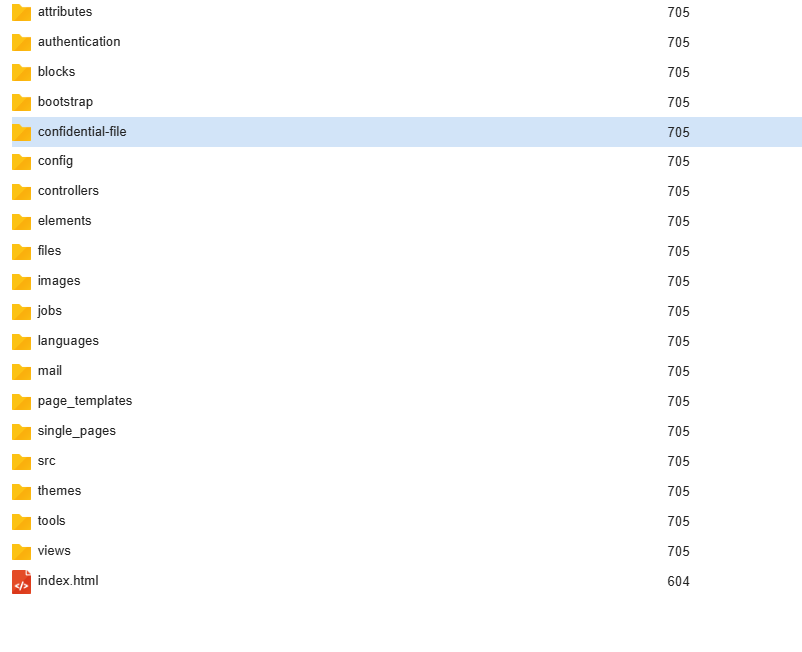
Accessing the tracking URL directly leads to the login screen, which is the desired behavior. However, is my understanding correct that access is possible if there are files in application/files?
Is there a way to place the files in a different directory and have them displayed normally through the file manager?
Thank you for your guidance.

Concrete stores files in the so-called “Storage Locations”.

By default, Concrete installs one storage location, which is a publicly accessible folder published under application/files.
Under that directory, the files are stored in subfolders which represent “internal identifiers” of the file.
Files in that directory can be directly seen via the we browser, without passing through any Concrete permission control.

For example, you may access a file with

https://my-site.com/application/files/8517/7625/6130/test.jpg

This is the “Direct URL”.

In order to have Concrete check for permissions, you have to use the “Tracking URL”, which may be something like

https://my-site.com/download_file/da83feac-05d4-40e0-b840-2f7c02c94d8e/9

But using the default storage location, the URL under application/files is still accessible by anyone.

If you want to protect some files, you can creare a second storage location, with files stored outside the web root.
In that case, there will be no “Direct URL” that users can use to get the file without passing through Concrete permission controls.

For example, if the root of your website is located in the directory:

/var/www/my-site

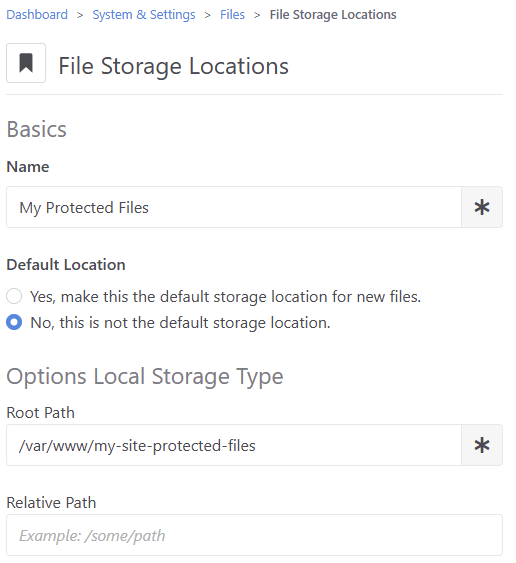
you can create a directory outside it, for example:

/var/www/my-site-protected-files

Then you can go to the ConcreteCMS Dashboard > System & Settings > Files > File Storage Locations and create a new storage location:

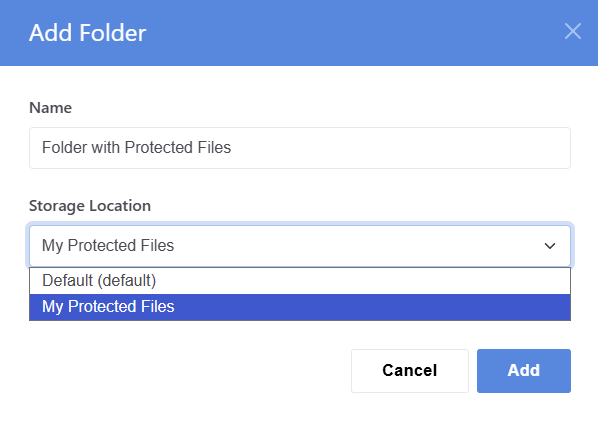
Then you can create a Concrete “folder”, setting its storage location to the storage location you just created:

When you add files to that new folder, you’ll see that the “Direct URL” and the “Tracking URL” are the same (that’s because there’s no URL that points directly to the file without passing though Concrete).
1 Like

Solution: Serve a PDF through a custom route instead of the direct file URL

If you don’t want users to access the PDF directly, and you don’t want to deal with file permissions or passwords, you can create a custom route that delivers the PDF safely.

This gives you:

  • A clean, fixed URL (example: /guidelines)
  • No exposure of the real file path
  • No need for advanced permissions
  • Optional login requirement
  • Custom download filename

Note:
The following solution has been tested on Concrete CMS 8.5.12.
It should also work on other 8.x versions, and likely on v9+ with minor adjustments,
but I have only verified it on 8.5.12 in production.
If anyone tests it on v9 or v10, feel free to share your results.

Add this to:
application/bootstrap/app.php

php
use Concrete\Core\Support\Facade\Application;
use Concrete\Core\Routing\Router;
use Concrete\Core\File\File;
use Symfony\Component\HttpFoundation\Response;

$app = Application::getFacadeApplication();
$router = $app->make(Router::class);

$router->get(‘/guidelines’, function() {

// Load PDF by File ID
$file = File::getByID(415);
if (!$file) {
    return "File not found";
}

$fv = $file->getApprovedVersion();
$resource = $fv->getFileResource();
$content = $resource->read();

return new Response(
    $content,
    200,
    [
        'Content-Type' => 'application/pdf',
        'Content-Disposition' => 'inline; filename="Guidelines.pdf"'
    ]
);
});

Benefits
- Users cannot access the real file URL
- You can replace the PDF in the File Manager without changing the URL
- You can require login if needed
- No need to use “Tracking URL”
- No advanced permissions required

The storage location explained by mlocati above is already built into the core. The above solution ignores the permissions part of the problem that OP wants to address. I’d recommend using the features already built in to Concrete CMS

Thank you for your guidance.

I apologize for not understanding everything, as I’m not very familiar with this topic.

Where do I create a clean, fixed URL (e.g., /guidelines)?

Should I add the code you provided to application/bootstrap/app.php?

I would appreciate it if you could explain in more detail.
Thank you.

Thank you for your guidance.

I apologize for not understanding everything, as I’m not very knowledgeable about this topic.

Does this mean this method is not recommended?

I would like to ask @mlocati for their answer.

Thank you in advance.

I think we have 2 issues here:

Accessing files only after checking for ConcreteCMS permissions

using a “protected Storage Locations” like I described above solve this (files won’t be directly accessible via URLs like https://website.com/application/files/...

Assigning a custom URL to a file

@Tsujino suggested a way to define a custom URL to download a file.
I thing @Myq wanted to say that using the default storage location to serve a file that should be progected is not the way to go (the file would be accessible both by that custom URL as well as with the “direct URL” https://website.com/application/files/... which will still be unprotected.

So, if you need to really protect a file, you should use a protected storage location like I described above.

Once you used created the protected storage location, you can protect a file with ConcreteCMS by:

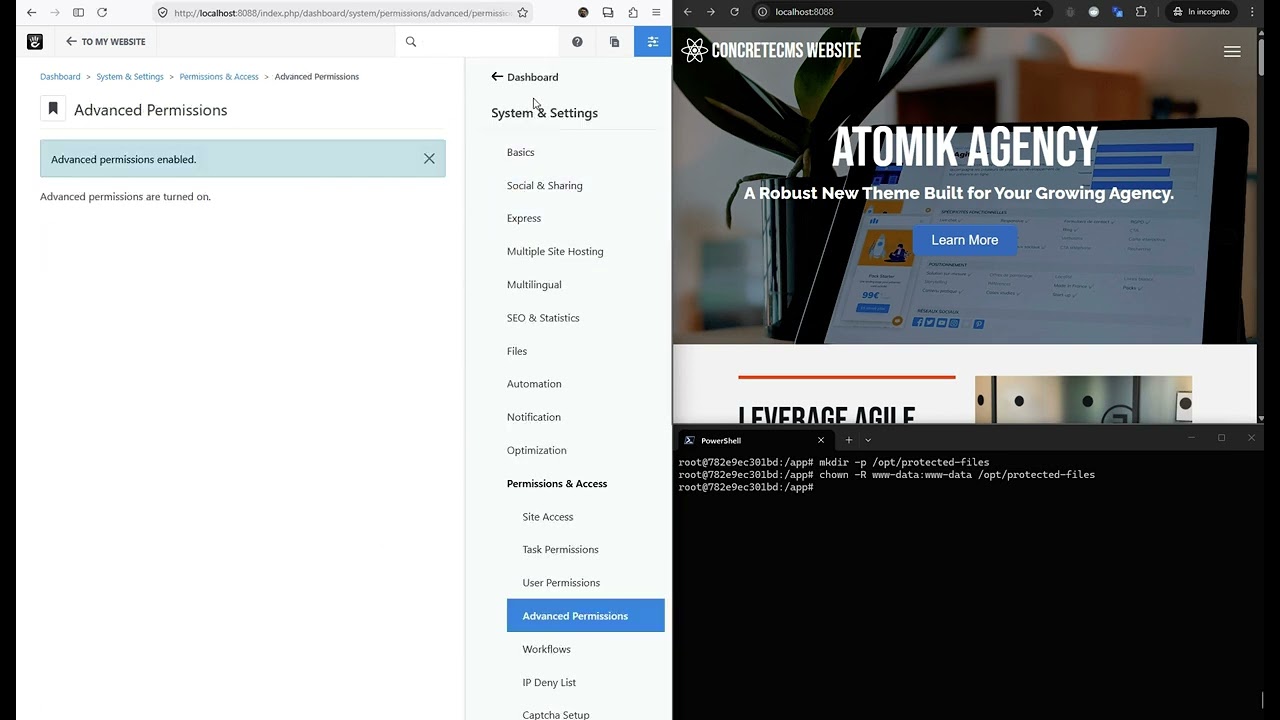
  1. turning on advanced permissions in the System & Settings > Permissions & Access > Advanced Permissions dashboard page
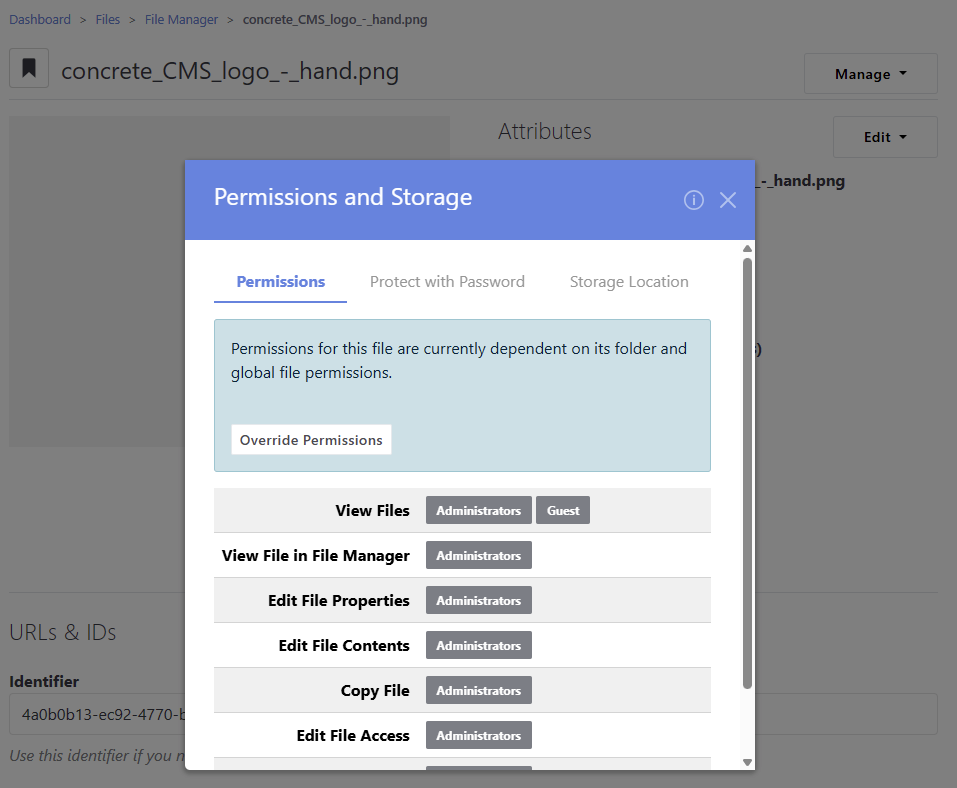
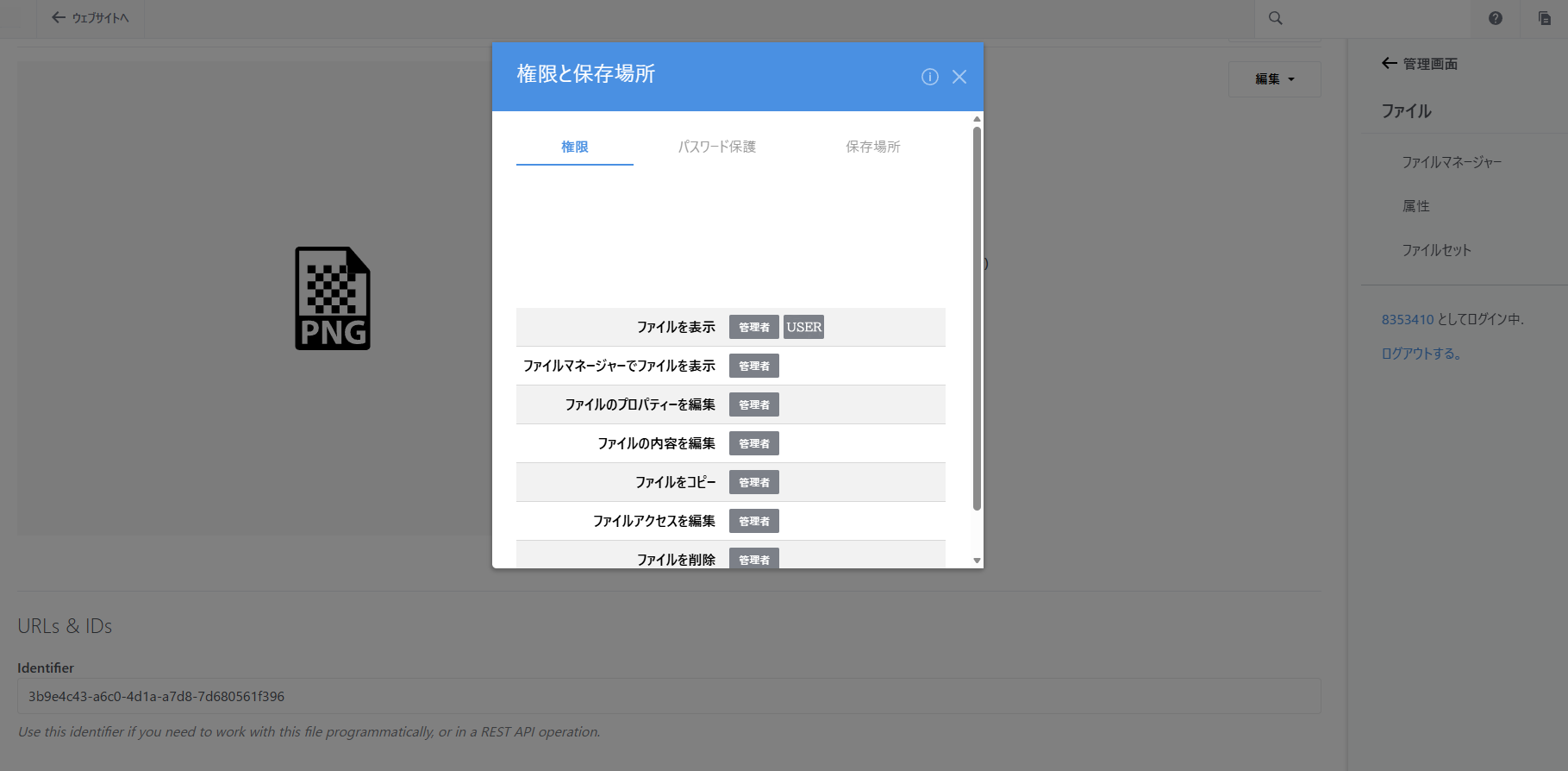
  2. view the file details, and click Manage > Permissions and Storage.
    There you can configure who can view the file:

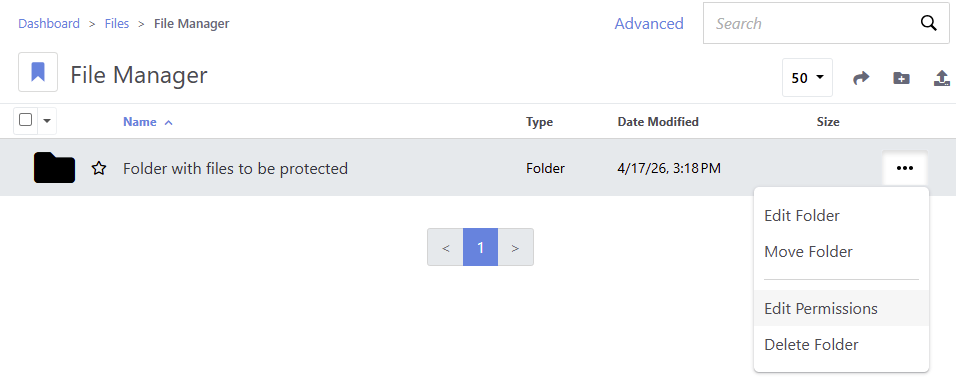
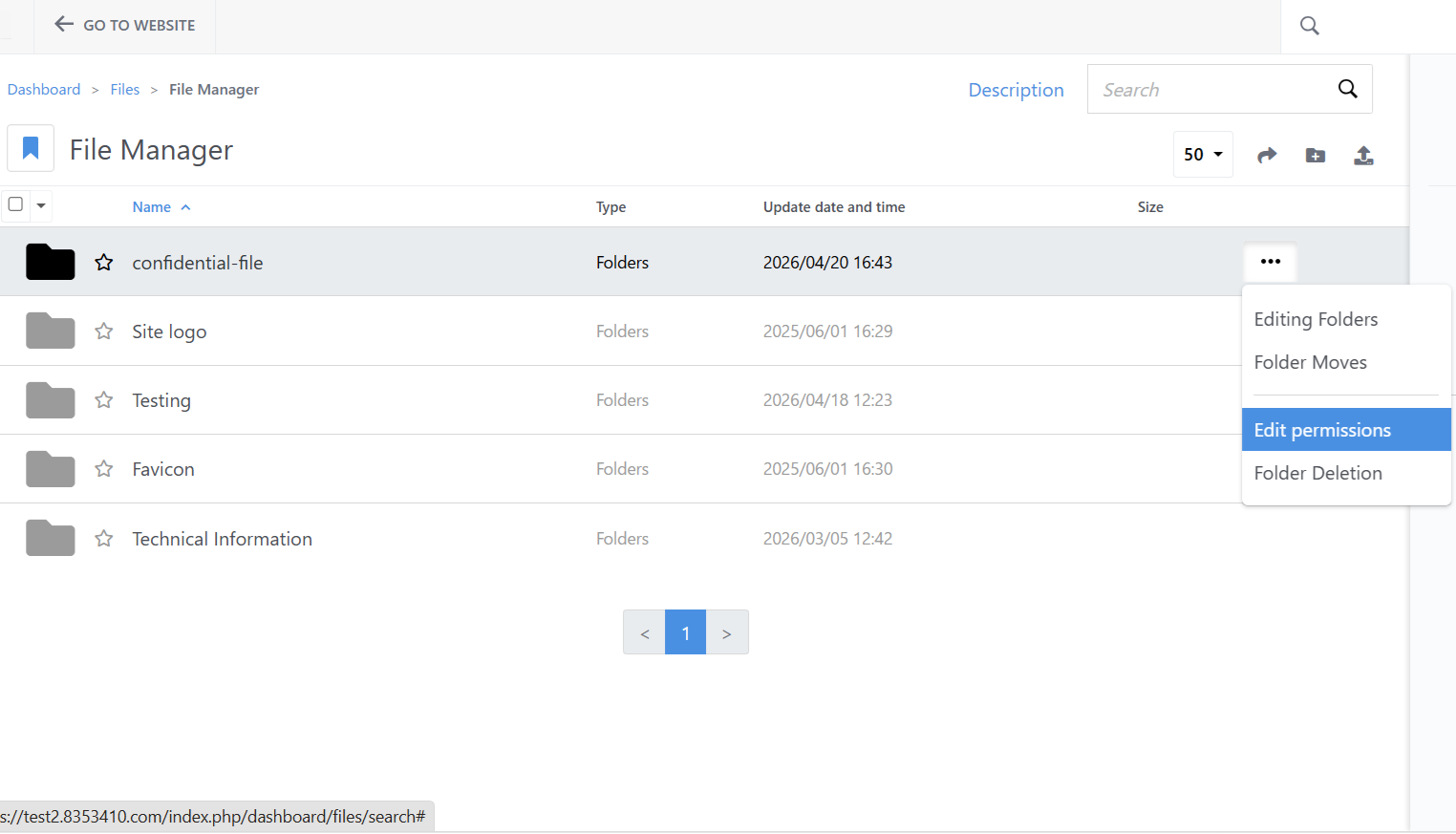
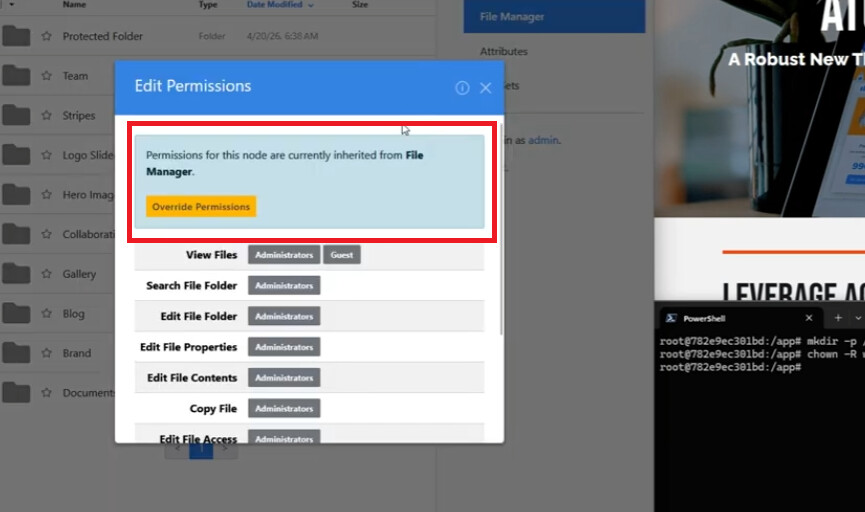
If you have many files that you want to be protected, you can create a folder, set the permissions at the folder level, and place the files under that folder.