Hi. I am currntly using Concrete 9.4.3 on PHP 8.4.
The context is that I have restored a site that was shelved during Covid. That site was running V5 but trying to upgrade from that absorted a great deal of time to zero effect. Plan B involved opeing every page of the site, running under V5, and then saving that to the local PC. Fortuantely it is not a big site. Having done that a new install of 9.4.3 was carried out and I am slowly re-building things from the saved material as well as learning how to cope with the changes brought by 9.4.3.
The biggest gripe I have is that the recovered text comes with a huge bucket of unwanted HTML. I have tried using the Remove Format button which works sometimes but more often not. The only solution I have found is to go into ‘source’ and delete it out. A typical example is here:
If anybody has a good idea of how to do the removal of the excess HTML then I would be most grateful.
Thank you for that tip. It sounds useful for those with the latest version of Windows. Sadly the Win 10 version of Notepad does not have it.
Happily I have found a work around that is good enough. Step one is to copy the original text (HTML) and then paste it into a Libre Office text document using Ctrl+shift+Alt+V. The latter strips out the formatting just as I was hoping. The next step is to highlight it all, Ctrl +X and then paste it into Concrete. It is not fast, but it works well.
Anybody know about the ‘Remove Format’ button in Concrete?
Thanks for that tip. It sounds useful, but as V5 and V9 need very different versions of PHP is has not been possible to run the old site and the new site at the same time.
Maybe I’m confused but when you say you “saved that to the local PC”, what do you mean by ‘that’? Do you mean you simply rendered each page and copied the entire HTML from that page hoping to paste it somewhere in the new site? If so, then that’s not really going to work. You need to go into Edit Mode on the v5 site and copy the contents of each block and paste that into a corresponding block on the v9 site. For example, if the Home page has a Content Block containing the main message then there should be a Content block on the v9 site to hold that content. That new Content block WANTS that old block’s HTML to format things the way they were on the old site. Now, sometimes pasting it as plain text and then working up up from there is desirable but you need to just start with only the HTML from the Content block and not the entire rendered page.
In my case, “that” was a website page captured using ‘Save Page as’ from the browser’s tools. That gave me series of HTML files that I could then open in the browser which emulated the V5 version of the site. From each of those pages I simply highlighted and copied the text and illustrations and then pasted them into the V9 version. Where appropriate separate blocks were created.
As far as I can remember, V5 was not heavily into blocks in the way that one sees in V9. My memory suggests that it was very much into pages and allowed one to choose from a variety of page layouts. I was amused to discover that those page layout options still exist in V9 in the section where one specifies the details of a page, but having set one’s choice the system just ignores it and defaults to ‘whole page’. If one wants two columns one has to faff with Boostrap 5 option and hope that a) the sliders will actually work and b) that the position you have chosen by eye will be ‘right’.
My suspicion is that the excess HTML in each of the copied paragraphs goes back to V5’ text editior plus or minus the excess HTML added by Word/Libre Office if the material was created of-line. I am finding that the ctrl+shit+alt+v approach does clean things up nicely. A little bit of editing in ‘Source’ enables one to finish the job. It is a pity that ‘source’ does not have a decent editor that could allow one to do ‘Find and Replace’ or other big tasks.
That’s what I feared. The HTML from the whole page is not what you’re after. Version 9 8 7 6 5, whatever, all use the same concept of blocks. Very little difference. The layout issue is entirely different thing not related to your current problem. My advice remains the same. Put the version 5 page in edit mode copy the contents of the Content block and paste it into a Content block on the version 9 site. These pages are built from the database up not from the HTML down. There might be other blocks that you can transfer the contents this way but I’m not familiar with very many that will work. That’s why the ‘Copy Block’ add-on thing was developed but you can’t use it because you’re skipping too many versions. If you want an image from the old site in the new version 9 site you’ll need to download/save the physical jpeg or whatever the image is from the version 5 site and save it locally and upload it to the File Manager in the version 9 site and then place it on the page in a new image block place on the new page.
I appreciate that you clearly have a useful technique in the Copy Block tool (I have not found it!) but the key problem in my particular circumstance is that it is not technically possible to run the old V5 site at the same time as the replacement V9 site. My Hosting will only allow one version of PHP and V5 and V9 use different versions and there is not a version of PHP that will allow both to run simultaneously. Much effort was wasted in attempting to do that.
I notice that in the online help pages it suggests that all one needs to do to move a block is to grab it and drag it. So far as I can see that only work when you have an empty block. I have currently noticed that I accidentally put a Content block in the wrong place and now having filled it I need to move it. I was offered ‘copy to clipboard’, but I can find no way to paste out of clipboard. Ctrl V does not do it so there must be a button or other key combination that I have yet to discover for pate from clipboard. It looks as if the mistake will have to be corrected in much the same way as before: Ctrl + X a paragraph and then Ctrl + V it into the corectly placed content block.
I have collected images in a folder for each page of the V5 site on the local PC and upload them into V9 as and when needed. I have not managed to crack the method for embedding an Image block in a Content block in V9, although I am sure it is possible. Since most of my images have captions I use the ‘Table Technique’. One simply chooses the position for the image, adds a table from the editor menu taking care to make sure it is a 1 X 1 table and is the size one wants the image. The image caption is then added and editied up from pale grey to emboldened black. The image is then pulled into the table, size adjusted to be 20 pix below the size of the table and given a 10 pix vetrical and horizontal spacing. Once in place, if it looks OK the table border can then be set to zero.
Being long in the tooth and having grown up when web pages were a great big chunk of HTML that one had to build and craft, no doubt old habits die hard. The modern CMS are certainly so much easier, but they do seem to be getting more and more complicated. I am getting the hang of blocks but they seem to be much less maleable than you seem to suggest, but of course that is down to my skils level.
Hey, I’m 68 so let’s not have age limit our progress here! LOL
Yes, it’s a very different architecture than the the past. It often requires folks to ‘forget’ all we knew so it doesn’t interfere with learning the new paradigm.
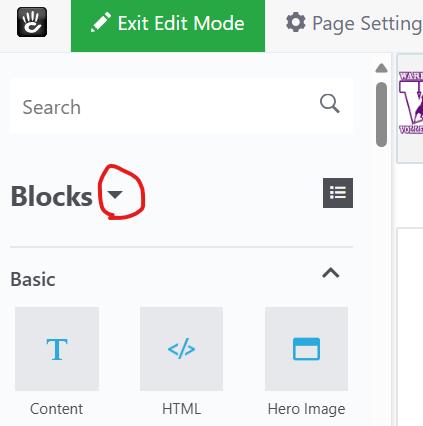
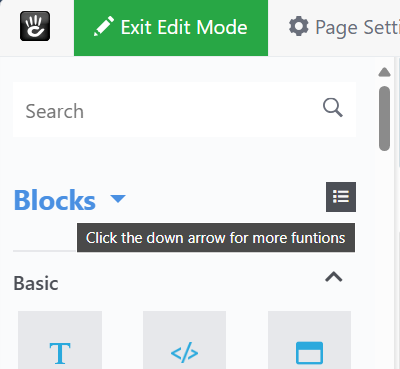
You’re fundamentally ‘mixing your metaphors’ so to speak. The ‘clipboard’ you’re pasting to for blocks is the concrete clipboard, not your local computer’s copy’n paste function. To 'paste’ a block you copied, you need to click the little down arrow next to the ‘Blocks’ label.
That will give you the opportunity to find all the blocks you’ve copied to the concrete’s clipboard. This little UI trick has fooled many a developer when it was first introduced so don’t feel too bad for missing it. It ain’t obvious. Yes, a simple tool tip would be nice on a lot of these UI elements but that doesn’t seem to be in the cards.
I appreciate how hard this is to wrap your head around but keep plugging away. Watch some of the training videos Andy and Franz have posted to get an overall view of how things work (if you haven’t already). Someone needs to do a video that maps ‘old school’ concepts and techniques to ‘new school’ techniques.
Thank you David and Michael for your posts. Bearing in mind the title of this thread I should report that I have had an email from Concrete ‘Head Office’ that says the Remove Formatting button “removes any bold, italics or fonts”. It will also leave pictures and weblinks untouched. There is also a demo here: [https://ckeditor.com/docs/ckeditor5/latest/features/remove-format.html#demo]. That includes a few short scripts to extend its capabilities, but I have not explored those since the editor has presumably been included in Concrete in full rather than as a skeleton.
Thanks for the reminder that one can run Concrete V 5.6.4.0 and Concrete V 9 simultaneously on PHP 7.4. That would have ben useful a few weeks ago, but for me, I don’t think the hassle of re-adjusting my V5 stuff to V5.6.4.0 warrants the time that it would take. I have made significant progress using my ‘archaic’ approach.
Thanks Michael for the Blocks information and the link to the video. I have watched that one and another and they were very useful. I will see if I can change my ways and become more block oriented.
Yes, the ‘age’ thing is not generally an issue, but since retiring I spend less time with young peope and am not in touch with current catch phrases. So if I thoughtlessly come out with the phrase “Right said Fred” (popular UK song of 1962) or perhaps “Good thinking Batman” (franchised US TV series in B + W of the 1960s) there tends to be a lot of eye rolling by asembled (younger) company.
A brief follow up in the context of the “Remove Format” button thread. I was editing in the former V5 site and went to click on an option that I have often used when editing in my other site. To my surprise it was missing. That triggered a bell that one needs to ‘install’ the functions that one likes to use in the editor as the Standard Install is quite bare. Use the Search box and enter Rich Text Editor and you will be taken to the page that lists all the possible options and shows which ones are selected. One of them is ‘Paste As Plain Text’ and another is ‘Paste from Word’. Both of them strip out excess formatting in the way that the ‘Remove Format button ought to do. The only difference is that one has to have copied the text and then be about to paste it into your document.